
Users
Users are accounts that can log in to KartuStok. Each non-owner user receives access through a company role.
Who Uses This Page
Administrators use this page to maintain operational users, assign roles, and set default warehouses so transaction forms start from the expected warehouse context.
Menu Location and Access
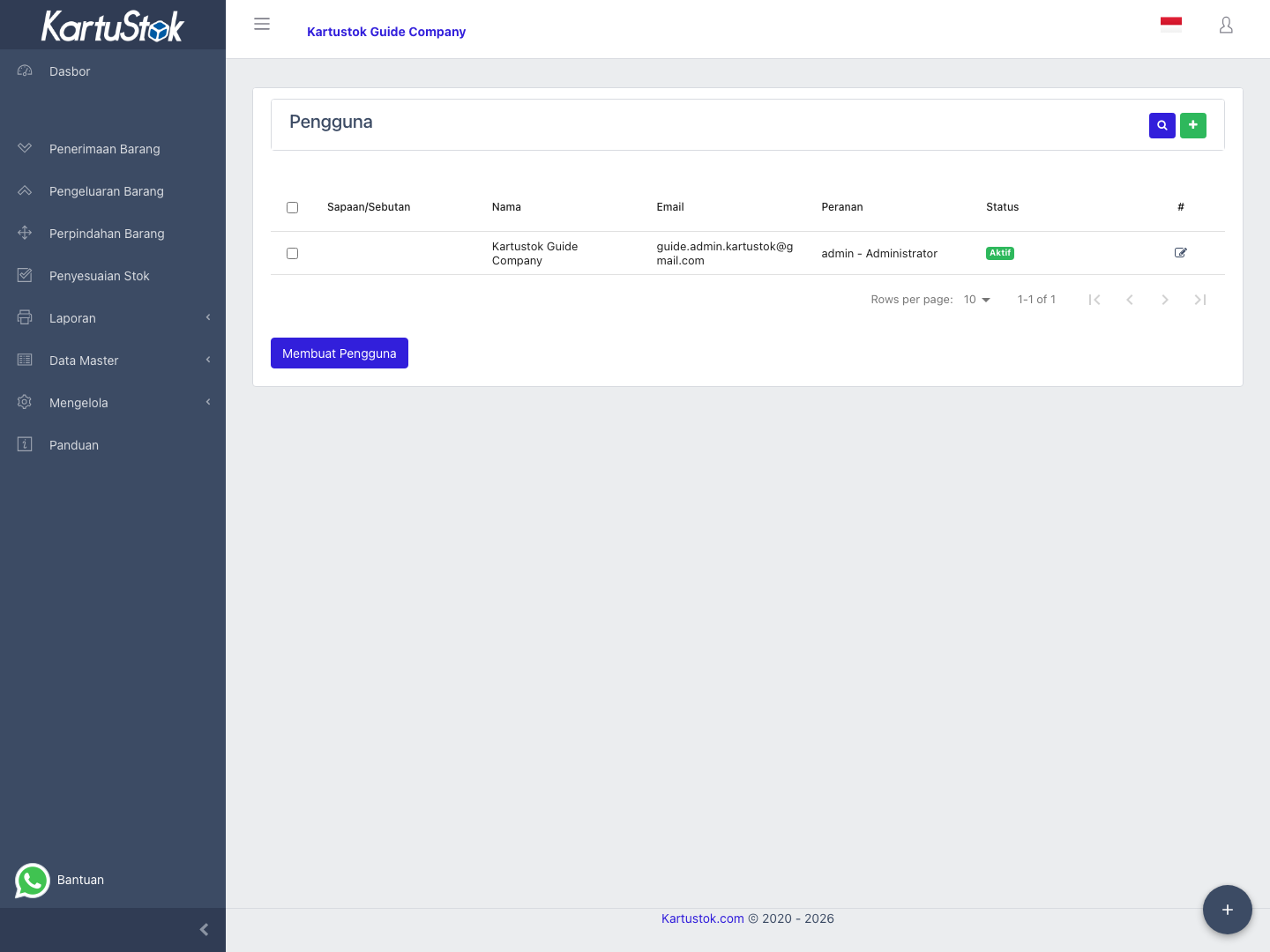
Open Manage -> Users & Permissions -> Users & Assign Role. The role must include user access. Creating, updating, and deleting users require separate permissions.
List Columns
The user list shows columns such as Salutation, Name, Email, Role, and Status.
Field Guide
| Field | Meaning | Notes |
|---|---|---|
| Salutation | User title. | Optional identity information. |
| Name | User display name. | Appears in lists and transaction context. |
| Login and notification email. | The update form treats email as read-only. | |
| Role | Company role assigned to the user. | Required for normal company users. Owner/admin is shown as Administrator and handled read-only. |
| Default Warehouse | Default source warehouse. | Helps reduce wrong source warehouse selection. |
| Default Destination Warehouse | Default destination warehouse. | Useful for users who often create Move transactions. |
| Is Active | Whether the account can be used. | Deactivate users who should no longer access the company. |
Create a User
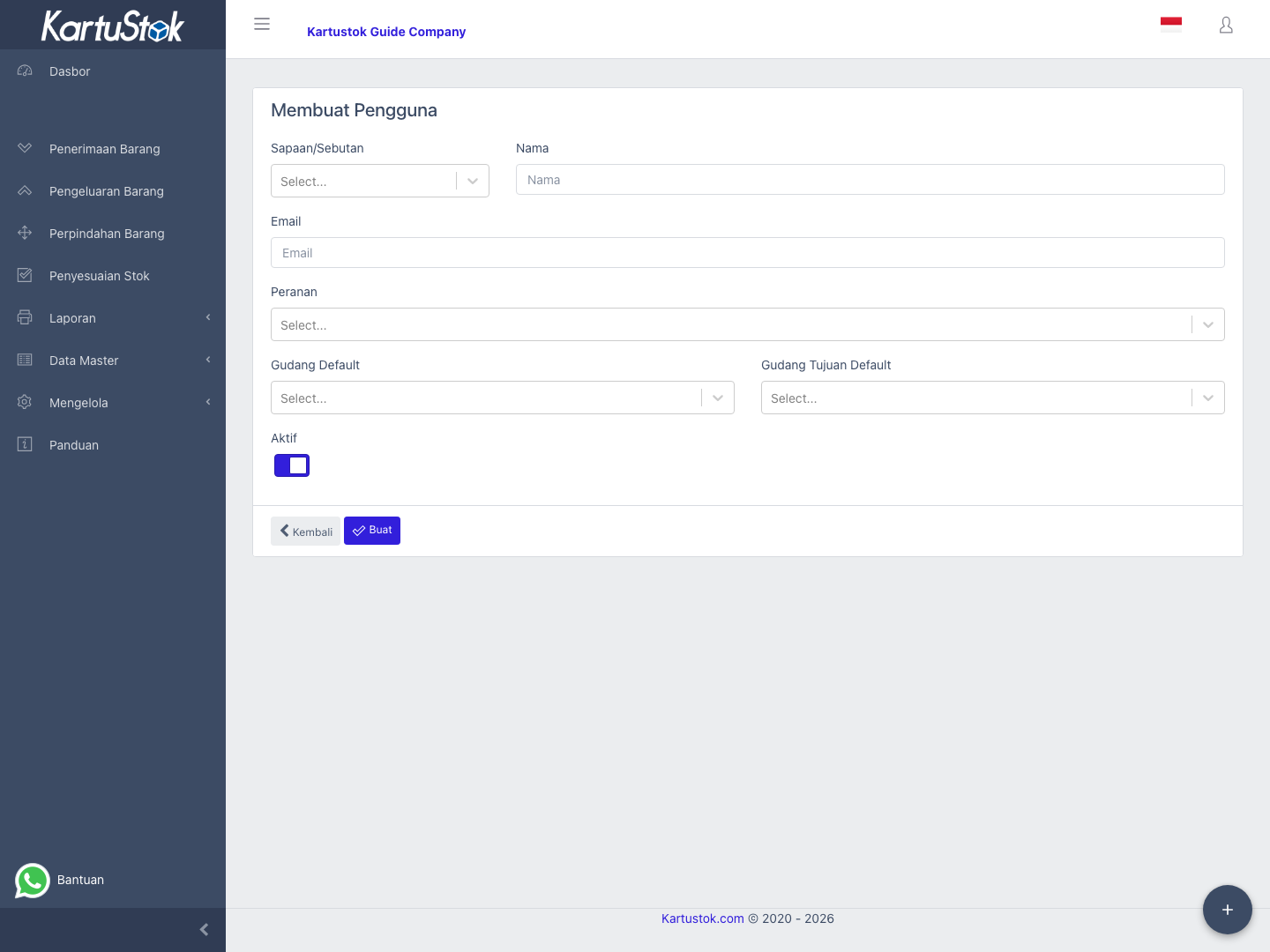
- Open Users & Assign Role.
- Select Create User.
- Fill salutation, name, and email.
- Select the correct role.
- Select default warehouse and default destination warehouse if they help the user's daily work.
- Set Is Active.
- Save.
Update a User
Open a user from the list. Update name, role, default warehouses, or active status. Owner/admin users are treated as Administrator and should not be changed into normal company roles from this form.
User Profile and Default Warehouse
Users can also open their own Profile from the user menu. Profile lets a user update personal information, set default warehouse behavior, and open Change Password.
| Profile Field | Operational Use |
|---|---|
| Default Warehouse | Preselects the common source warehouse for Receipt, Issue, and Adjustment workflows. |
| Default Destination Warehouse | Preselects the common destination warehouse for Move workflows. |
| Change Password | Lets the current user update their own password. |
Default Warehouse and Default Destination Warehouse are only form defaults. They help the user start with the most common warehouse already selected, but they do not grant access to that warehouse.
Important: Default Warehouse only preselects a warehouse in the form. It does not grant warehouse access.
If you need to control which warehouses a user may access, set it from Manage -> Users & Permissions -> Roles & Permissions in the warehouse access section. Use the role to limit accessible source and destination warehouses, then use Default Warehouse only as a convenience shortcut.
Access Review
Review users regularly:
| Review Item | Reason |
|---|---|
| Inactive users | Prevent old users from signing in. |
| Role assignment | Make sure users only have needed access. |
| Default warehouses | Reduce transaction warehouse mistakes. |
| Price access | Limit price visibility to users who need it. |
Operational Examples
| User Scenario | Suggested Setup | Result |
|---|---|---|
| Warehouse staff in one location | Assign Staff role, set Default Warehouse to their warehouse, keep price access off. | User can work faster and does not see price. |
| Supervisor across warehouses | Assign Supervisor role, allow report access, set warehouse responsibility as needed. | User can review operations without full admin access. |
| Owner/admin account | Keep Administrator role behavior. | Owner keeps company-wide control. |
| Transfer operator | Set Default Warehouse and Default Destination Warehouse. | Move form starts closer to the user's common transfer flow. |
Common Problems
| Problem | Fix |
|---|---|
| Role field is Administrator and read-only | This is expected for owner/admin users. |
| User cannot open a menu | Check the user's assigned role permissions. |
| User selects the wrong warehouse often | Review Default Warehouse and Default Destination Warehouse. |
| User should not see prices | Remove Price row View permission or disable company pricing. |