
Transaction: Issue
Issue records stock leaving a warehouse. Use it for production consumption, customer shipment, internal usage, damaged goods write-off, or other stock-out events.
Menu Location and Access
Open Issue from the sidebar. The user role needs Issue permissions for list, create, update, delete, import, or print actions.
Field Guide
| Field | Meaning |
|---|---|
| Transaction Category | Classifies the stock-out document. |
| No Document | Document number according to transaction category numbering. |
| Transaction Date | Date of the stock-out event. |
| Warehouse | Warehouse where stock is taken from. |
| Reference | Standard source reference. |
| Description | Standard document note. |
| Document Status | Draft does not update stock; Complete updates stock. |
| Item / Quantity | Item lines and issued quantity. |
| System Quantity | Available stock display when enabled in settings. |
| Custom Fields | Extra operational data configured in Issue Form. |
If Warehouse Grouping is enabled, choose the Warehouse Group first, then the Location where stock is taken from. See Master Data: Warehouse for the structure.
Important:
Draftdoes not change stock.Completedecreases stock from the selected warehouse.
Issue Form Examples
Recommended custom fields are different by stock-out purpose. These are suggestions, not built-in fields.
| Scenario | Recommended Custom Fields | Why They Help |
|---|---|---|
| Production usage | Requester, Department, Production Order No, Machine / Line, Usage Reason. | Explains why materials left the warehouse. |
| Customer shipment | Customer Name, Sales Order No, Delivery Address, Driver, Vehicle No. | Links stock-out to delivery operation. |
| Internal request | Request No, Requested By, Approved By, Cost Center. | Makes internal accountability clear. |
| Damaged goods write-off | Damage Reason, Approval Note, Photo Attachment. | Supports audit for stock loss. |
Create an Issue
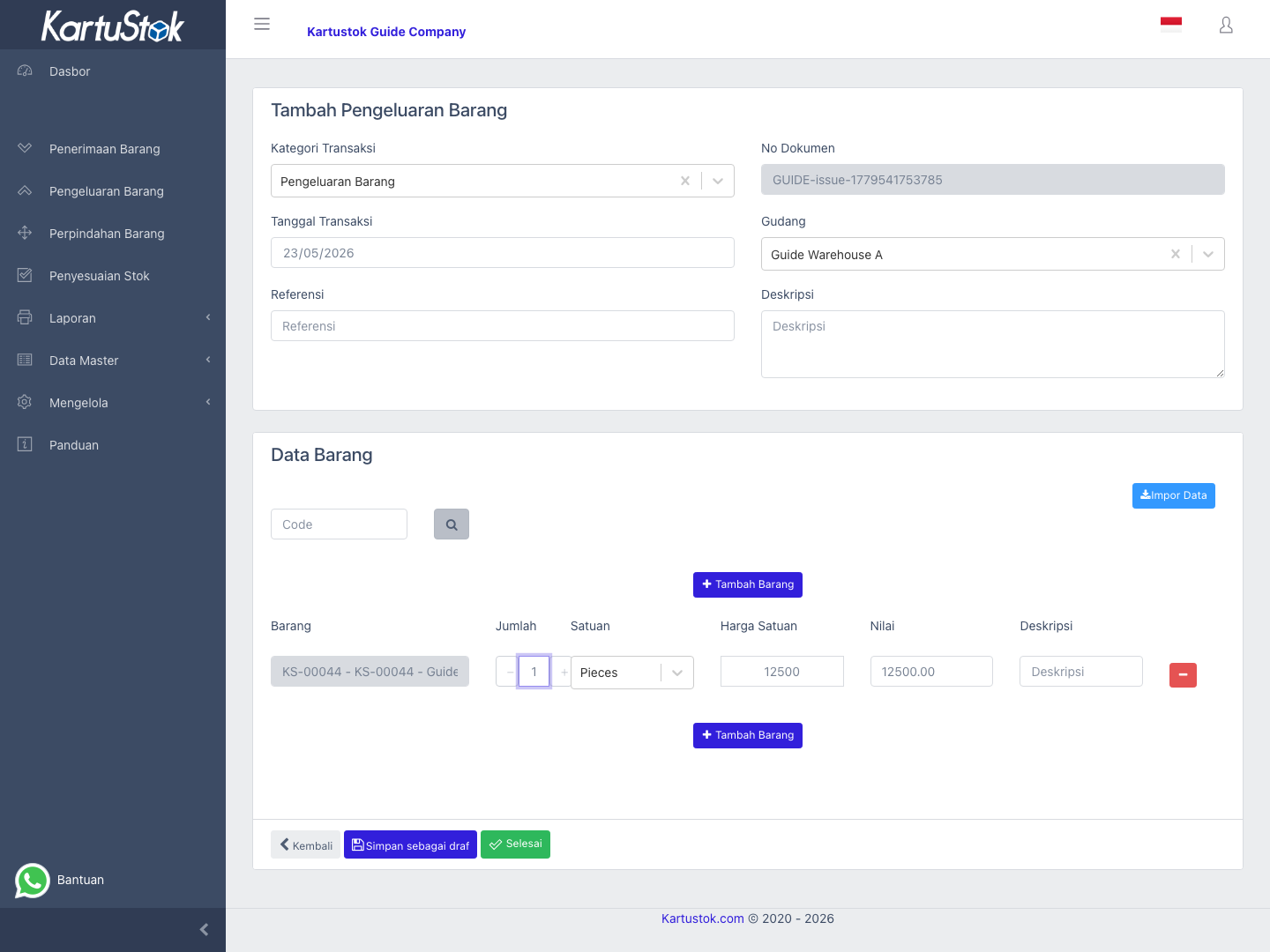
- Open Issue and select Create Issue.
- Choose transaction category and transaction date.
- Select the source warehouse.
- Fill reference and description if needed.
- Add item lines and issue quantities.
- Fill required custom fields from Issue Form.
- Save as draft or complete the document.
If there are many issue lines, use transaction line import from the form. Always review imported quantities before completing because Issue decreases stock.
Practical Example: Stock Out for Production Usage
The production team takes 12 pieces of Packaging Tape from Main Warehouse.
| Step | User Action | Result to Check |
|---|---|---|
| 1 | Create an Issue with category Production Usage. | Transaction is classified correctly for reports. |
| 2 | Select the source warehouse. | Stock will decrease from this warehouse. |
| 3 | Add the item and quantity 12. | Quantity matches physical stock taken. |
| 4 | Fill Requester, Department, Production Order No, or Usage Reason if configured. | The reason for stock-out is clear. |
| 5 | Complete the Issue. | Stock balance decreases and the document appears in reports. |
Stock Control
If the company prevents negative stock, KartuStok can block issue quantities that exceed available stock. If the company allows negative stock, review negative balances regularly.
Print and Report Relationship
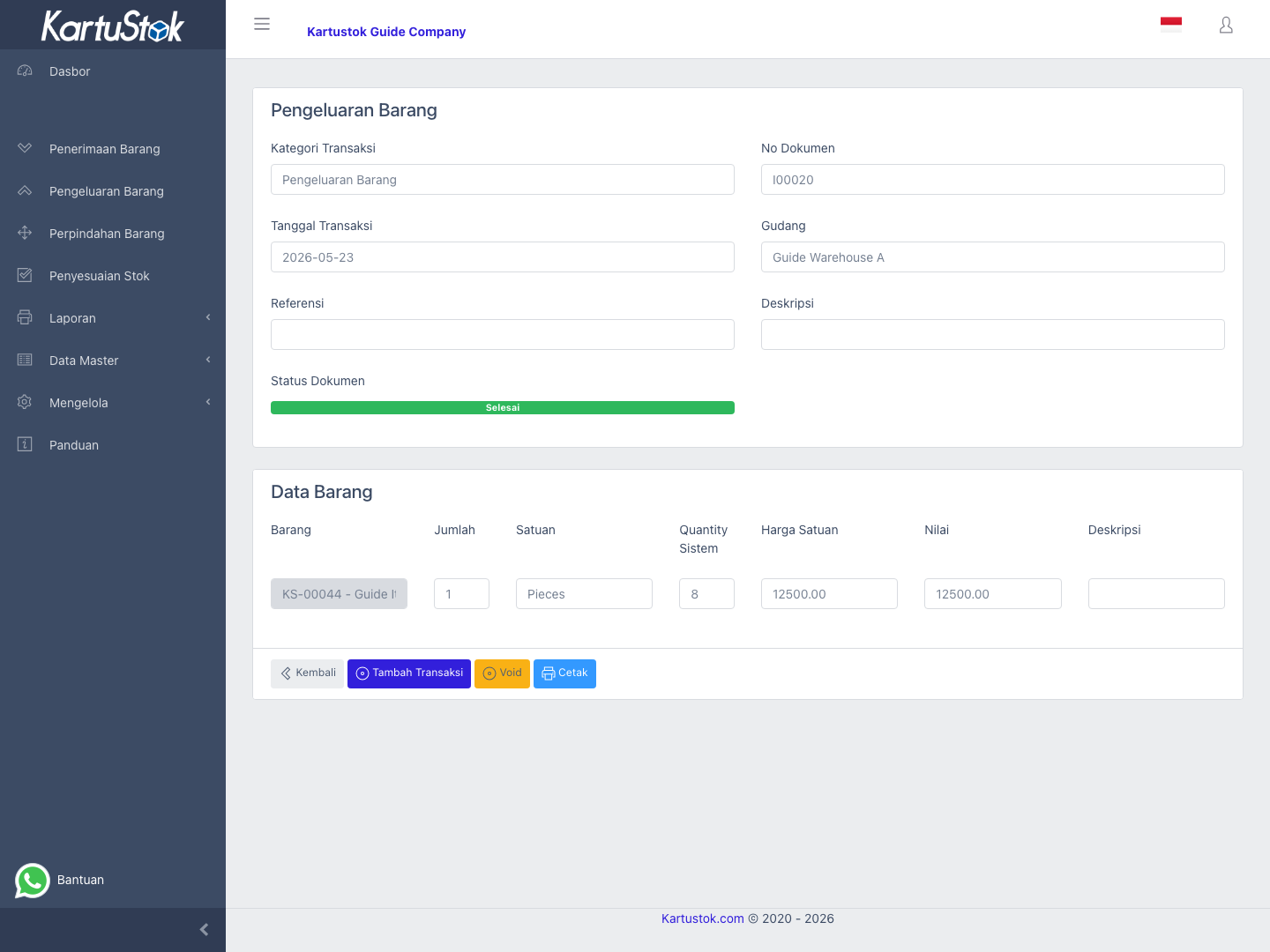
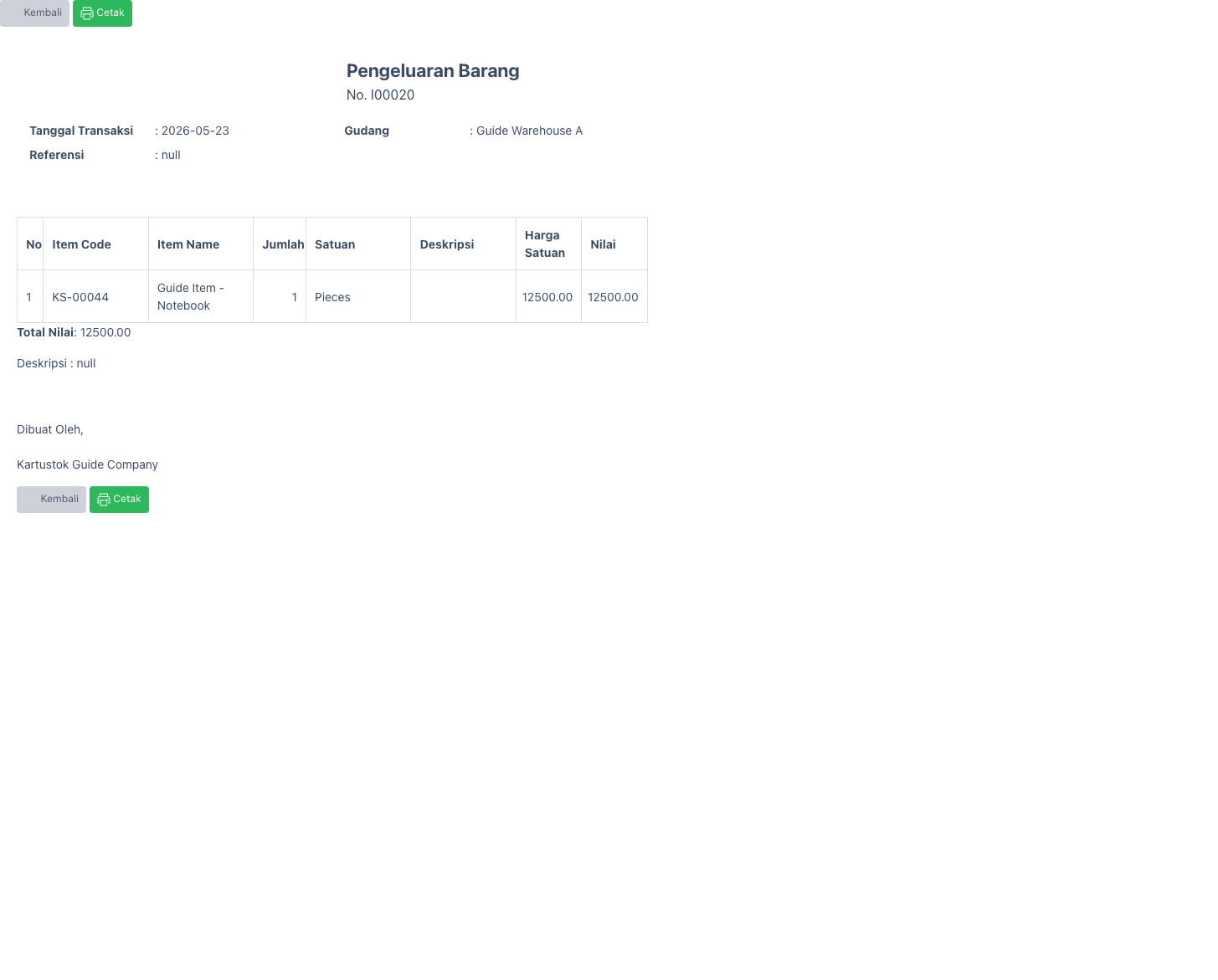
Print Issue when the warehouse needs a signed release note. Use Detail Stock Card to audit who issued stock, when it happened, and what custom fields were captured.
Common Problems
| Problem | Fix |
|---|---|
| Cannot complete Issue | Check stock availability, required fields, and permission. |
| Quantity looks wrong | Confirm warehouse and item selection. |
| Stock does not decrease | Confirm the document is completed. |
| Required custom field blocks completion | Fill the field or review Issue Form configuration. |
| User cannot see available stock | Check Show Quantity System setting and role access. |