
Master Data: Unit of Measure
Unit of Measure defines how each item quantity is written in transactions and reports.
Menu Location and Access
Open Master Data -> Unit of Measure. The role must include UOM access. Import requires Import Unit of Measure permission.
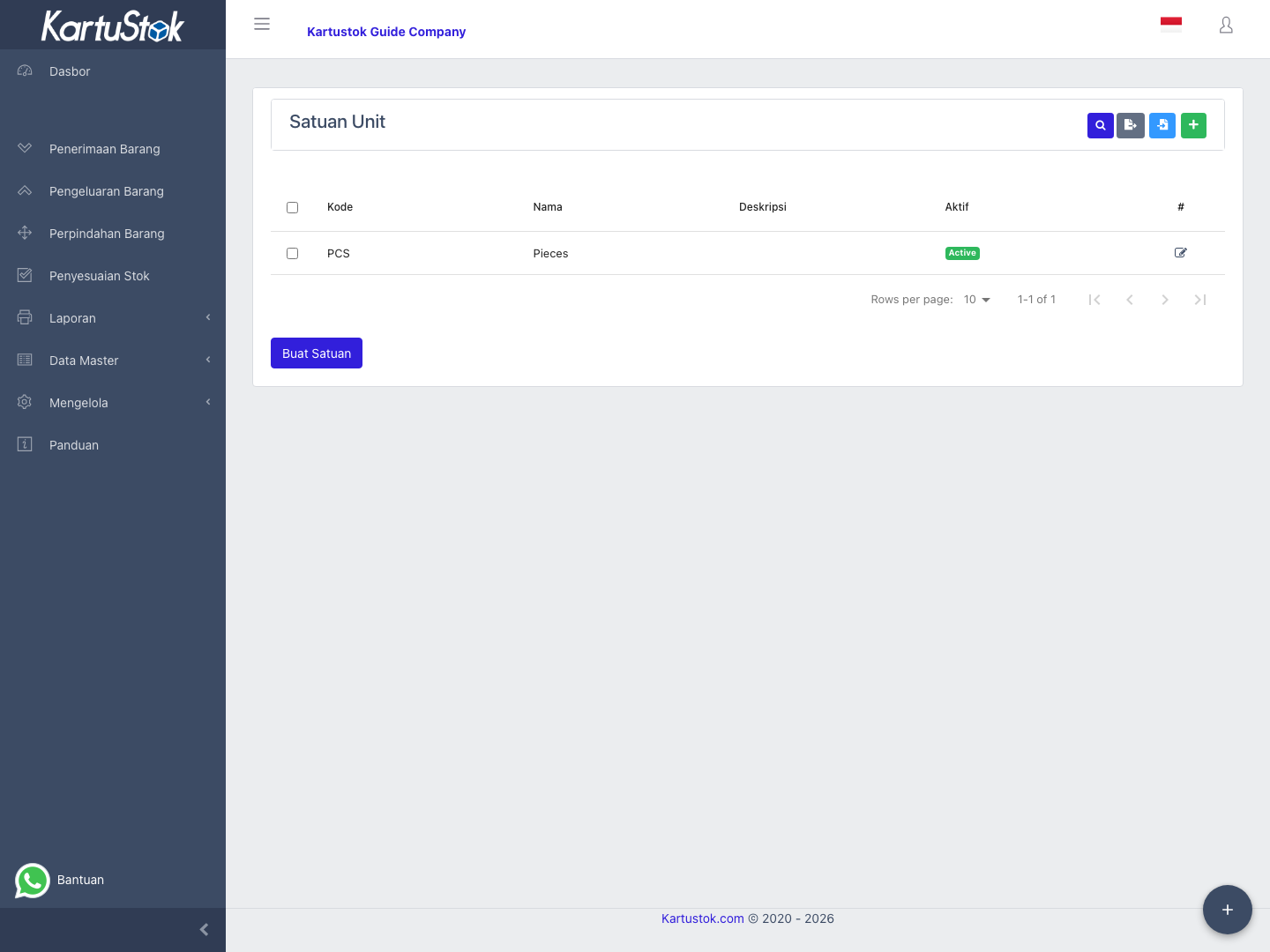
Field Guide
| Field | Meaning | Recommended Practice |
|---|---|---|
| Code | Short unit identifier. | Keep it stable for imports and integrations. |
| Name | Unit label such as pcs, box, kg, or meter. | Use labels users already use in the warehouse. |
| Precision | Number of decimal places allowed for the unit. | Use 0 for whole-unit items; use decimals only when the business counts fractions. |
| Description | Extra explanation for the unit. | Helpful for uncommon units. |
| Is Active | Whether the unit can be selected. | Deactivate units that should no longer be used. |
Operational Examples
| Item Type | Recommended UOM | Precision |
|---|---|---|
| Counted goods such as tape, bolts, bottles | pcs, box, pack | 0 |
| Weighted goods such as powder or chemical | kg, gram | Use decimals only if the warehouse records fractions. |
| Length-based goods such as cable or fabric | meter | Use decimals if partial length is issued. |
Choose precision before daily transactions start. Changing precision later can confuse users who already entered quantities with the old rule.
Create a Unit
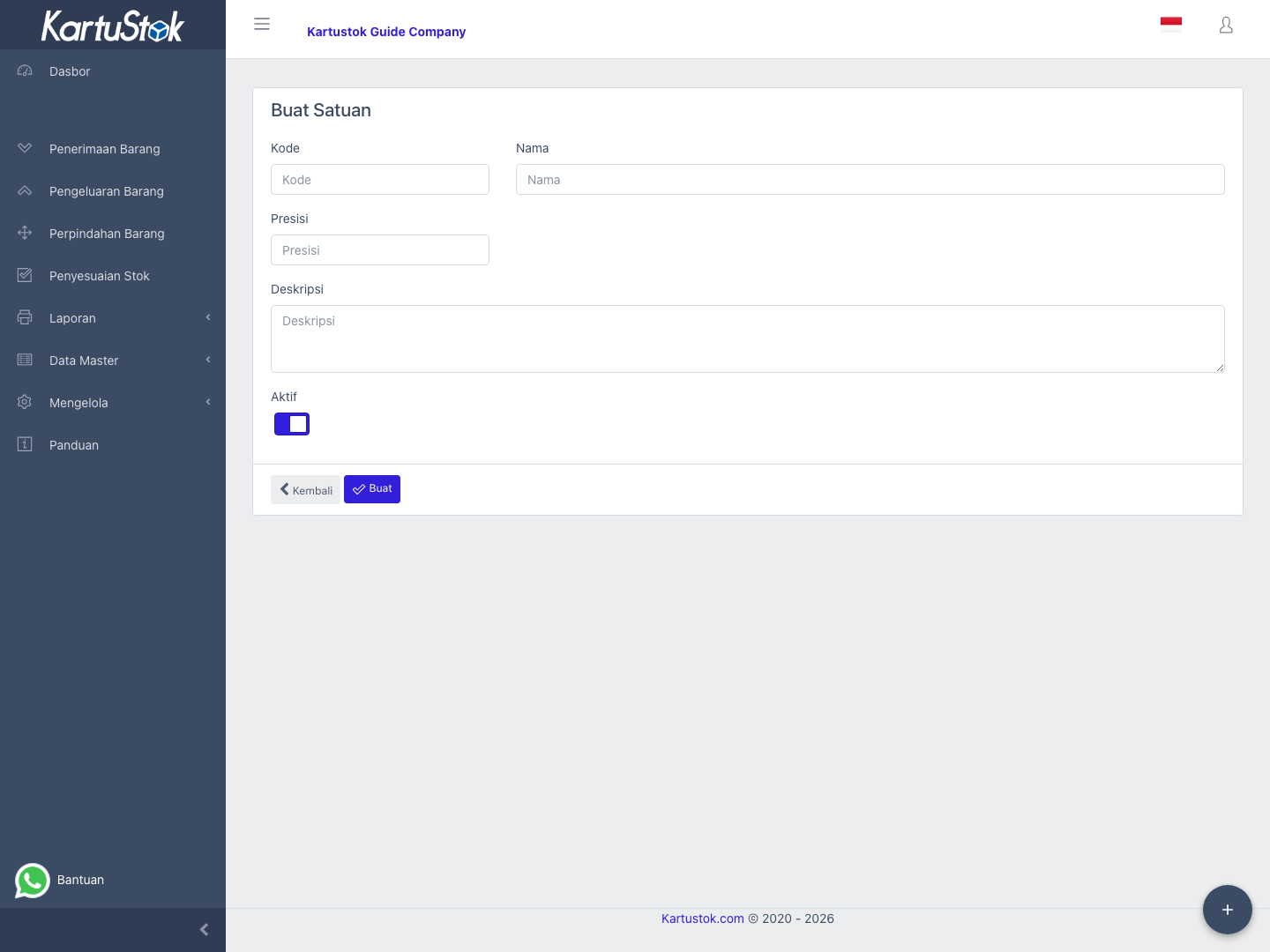
- Open Master Data -> Unit of Measure.
- Select Create Unit of Measure.
- Fill code, name, precision, and description if needed.
- Keep Is Active enabled when the unit can be used.
- Save and use the unit when creating or updating an item.
Import Units
Use Manage -> Import -> Import Unit of Measure to prepare UOM data in bulk. Import UOM before importing item data.
Common Problems
| Problem | Fix |
|---|---|
| UOM is missing in Item form | Confirm the UOM is active. |
| Quantity decimals are not accepted | Check the UOM Precision value. |
| Import cannot match a unit | Confirm code/name spelling in the spreadsheet. |