
Transaction: Move
Move transfers stock from one warehouse to another. It decreases stock in the source warehouse and increases stock in the destination warehouse.
Menu Location and Access
Open Move from the sidebar. Users need Move permissions to create or update movement documents.
Field Guide
| Field | Meaning |
|---|---|
| Transaction Category | Classifies the movement document. |
| No Document | Document number according to transaction category numbering. |
| Transaction Date | Date of the movement. |
| From Warehouse | Source warehouse. |
| To Warehouse | Destination warehouse. |
| Reference | Transfer reference or request number. |
| Description | Standard document note. |
| Document Status | Draft does not update stock; Complete updates both warehouses. |
| Item / Quantity | Item lines and quantity transferred. |
| Custom Fields | Extra transfer data configured in Move Form. |
If Warehouse Grouping is enabled, choose a source Warehouse Group and Location, then a destination Warehouse Group and Location. This prevents transfers from being recorded against the wrong branch or storage area.
Important:
Draftdoes not change stock.Completedecreases the source warehouse and increases the destination warehouse.
Move Form Examples
Recommended custom fields below are examples, not built-in fields. Add them only if they match your transfer process.
| Scenario | Recommended Custom Fields | Why They Help |
|---|---|---|
| Transfer between warehouses | Transfer Request No, Requested By, Approved By, Dispatch Date. | Makes the transfer request traceable. |
| Branch replenishment | Branch Name, Replenishment Reason, Priority. | Explains why stock was sent. |
| Delivery preparation | Driver, Vehicle No, Loading Time, Dispatch Time. | Tracks goods during physical movement. |
| Staging area movement | Staging Location, Prepared By, Checked By. | Clarifies responsibility before final shipment. |
Create a Move
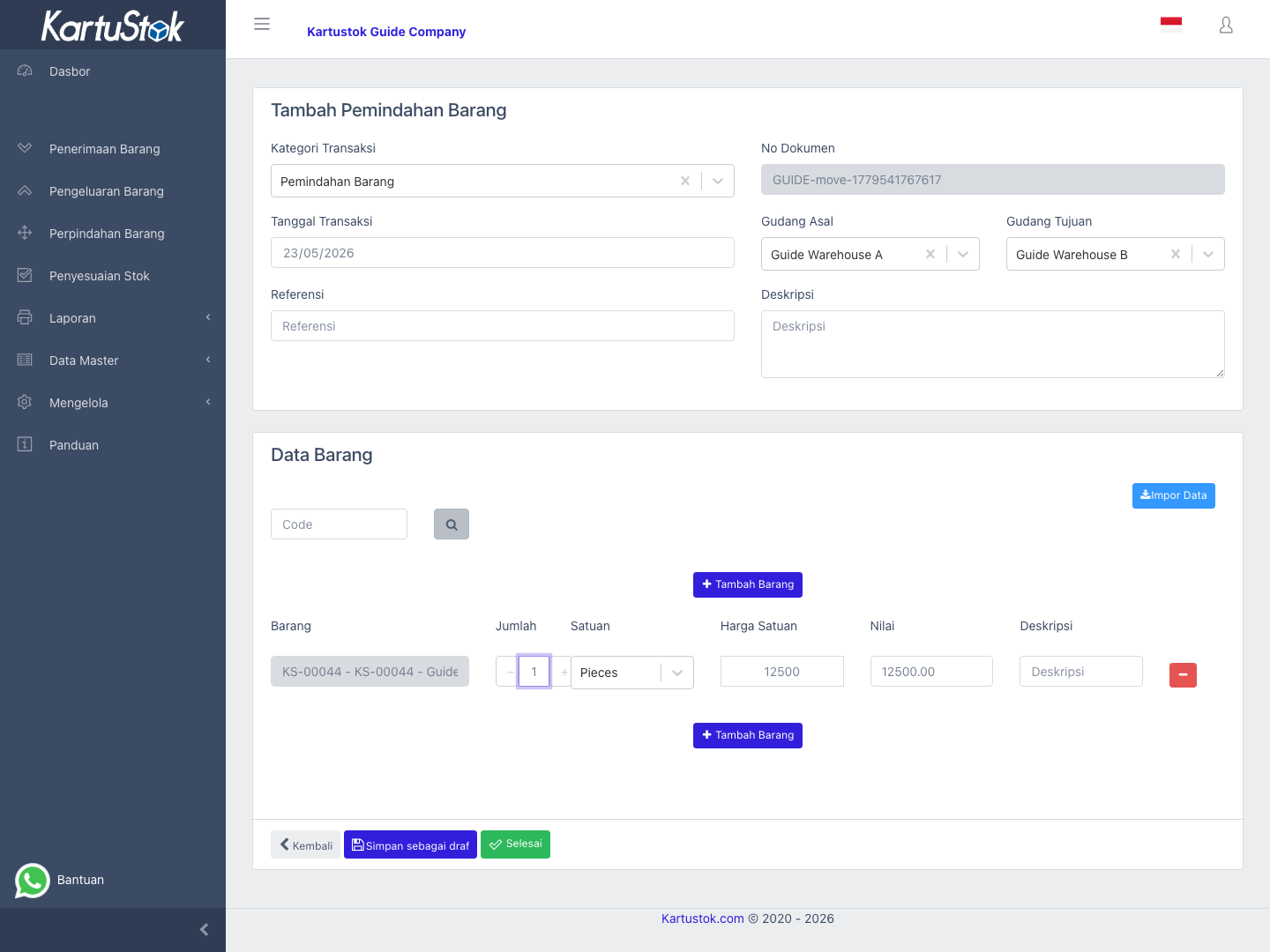
- Open Move and select Create Movement.
- Choose transaction category and transaction date.
- Select source warehouse and destination warehouse.
- Fill reference and transfer notes if needed.
- Add item lines and quantities.
- Fill required custom fields from Move Form.
- Save as draft or complete the document.
If there are many move lines, use transaction line import from the form. Review source and destination warehouses before completing because Move changes both balances.
Practical Example: Transfer Between Warehouses
The team transfers 20 pieces of Packaging Tape from Main Warehouse to Branch Warehouse.
| Step | User Action | Result to Check |
|---|---|---|
| 1 | Create a Move transaction. | Movement document is created for internal transfer. |
| 2 | Select Main Warehouse as From Warehouse. | Stock will decrease from the source. |
| 3 | Select Branch Warehouse as To Warehouse. | Stock will increase in the destination. |
| 4 | Fill Transfer Request No, Driver, or Vehicle No if configured. | Physical transfer is traceable. |
| 5 | Add the item and quantity 20. | Moved quantity matches physical transfer. |
| 6 | Complete the Move after goods are sent or received according to company procedure. | Both warehouse balances are updated. |
Print and Report Relationship
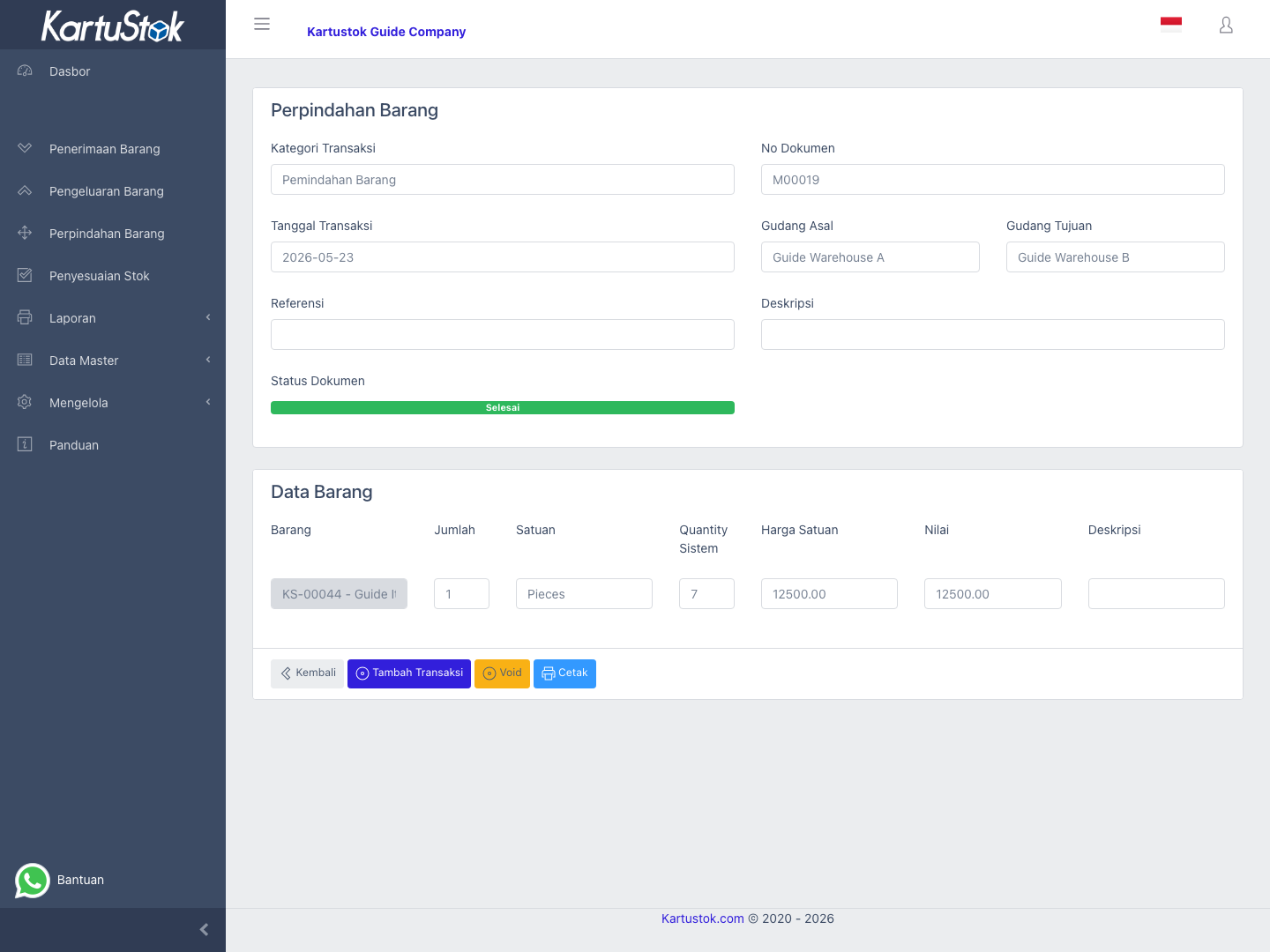
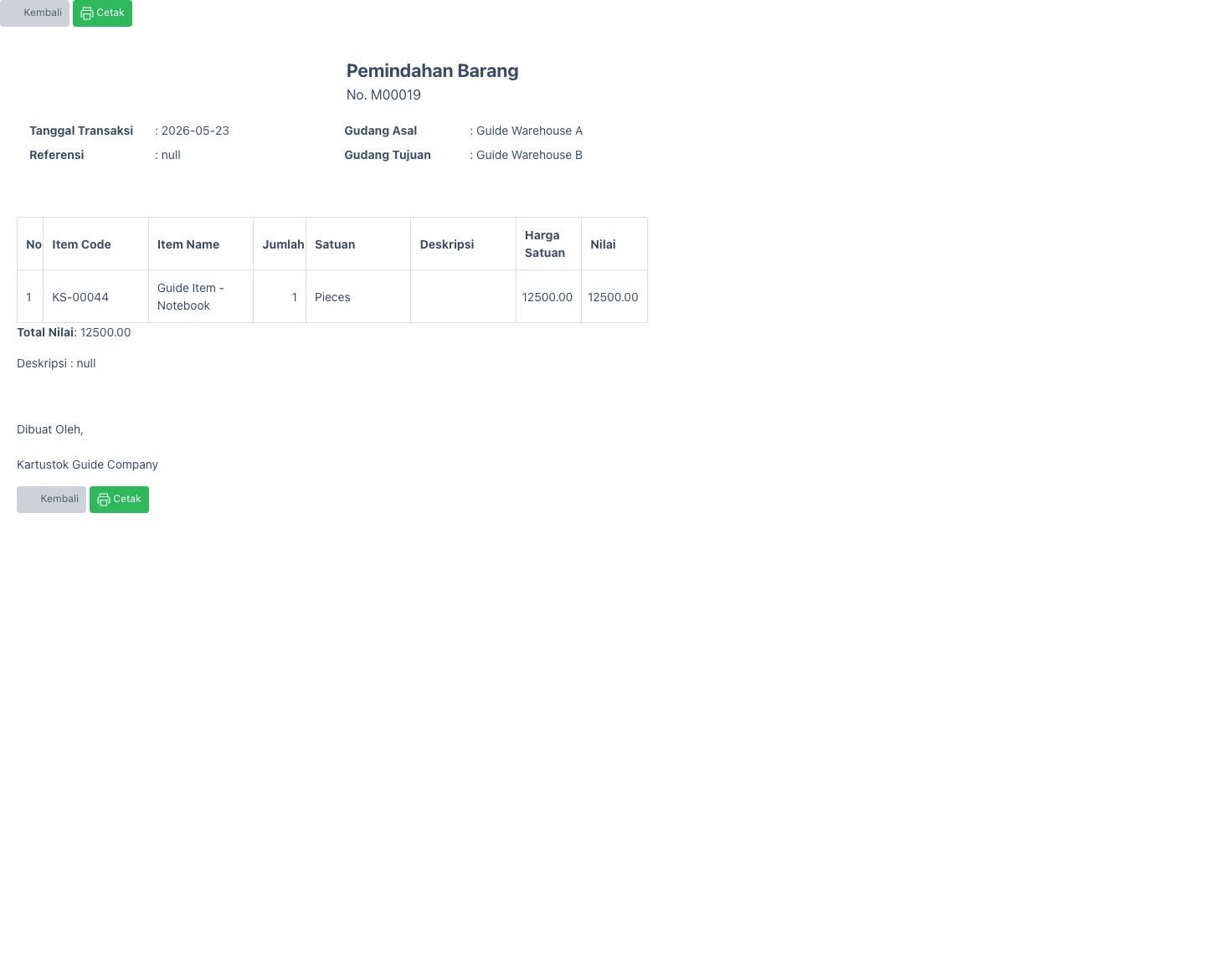
Print Move when the transfer needs a handover document. Use Summary Stock Card to compare source and destination balances, and Detail Stock Card to audit the transfer rows.
Common Problems
| Problem | Fix |
|---|---|
| Destination warehouse is missing | Confirm the destination warehouse is active. |
| Stock is still in old warehouse | Confirm Move is completed. |
| Item line cannot be added | Check source warehouse and item selection. |
| Required custom field blocks completion | Fill the field or review Move Form configuration. |
| Source and destination are accidentally the same | Cancel before saving, or correct according to company policy if already completed. |