
Report: Summary Stock Card
Summary Stock Card shows stock movement totals and ending balance in a summarized table. Use it when you need a stock position overview, not document-level audit.
Menu Location and Access
Open Report -> Summary Stock Card. The role must have report access for this page.
When to Use It
Use this report to answer:
| Question | Why This Report Helps |
|---|---|
| What is the beginning and ending stock for selected items? | The result includes beginning stock, stock in, stock out, and ending stock. |
| Which warehouse has stock for an item? | Results can be filtered by Warehouse. |
| Which items moved in a selected period? | Use the mutation-only option to focus on items with movement. |
Filters and Options
| Field / Option | Meaning |
|---|---|
| Date From / Date To | Required report period. |
| Warehouse | Optional multi-select warehouse filter. |
| Warehouse Group / Group by Warehouse | When Warehouse Grouping is enabled, users can filter or aggregate rows by Warehouse Group. |
| Display items from the selected warehouse | Limits item selection to selected warehouse stock context. |
| Item | Optional multi-select item filter. |
| Sort By | Sorts by Item Name or Item Code. |
| Transaction Types | Optional movement type filter: Item Receipt, Item Issue, Item Move, Item Adjustment, Item Assembly, or Item Disassembly. |
| Hiding out of stock products | Hides rows without stock. |
| Show only the mutations on the selected date | Focuses on rows with movement in the selected period. |
| Hide voided transaction | Excludes voided transaction impact when active. |
| Show inactive product | Includes inactive items. |
| Show detailed product | Adds product detail columns such as UPC/EAN, Description, Item Category Name, and configured item custom fields. |
Generate, Print, and Export
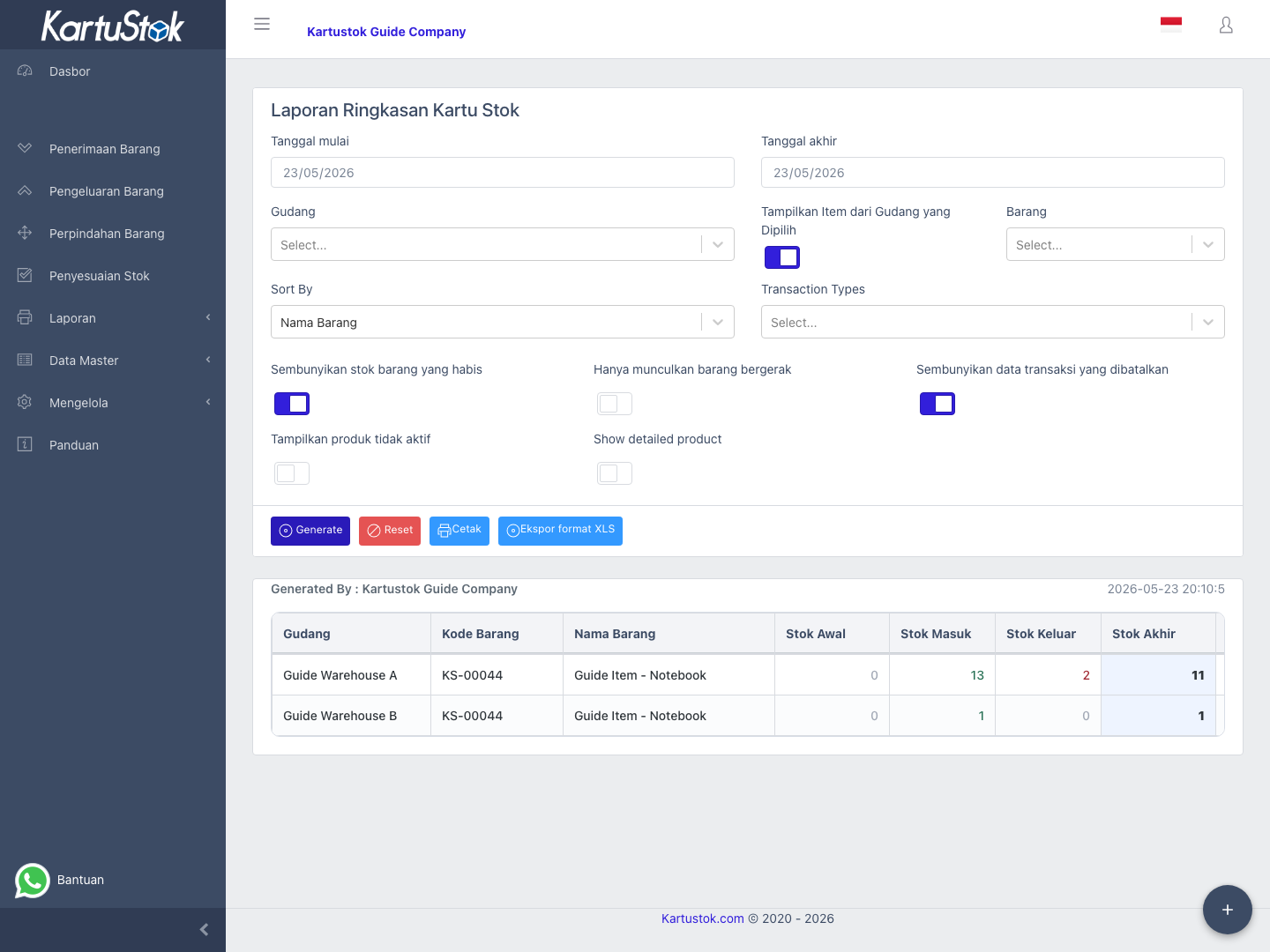
- Fill Date From and Date To.
- Add warehouse, item, transaction type, or display options if needed.
- Select Generate.
- Review the summary table.
- Use Print or Export to Excel after data is generated.
Practical Example: Daily Warehouse Review
A supervisor wants to review stock position for Main Warehouse at the end of the day.
| Step | User Action | Result to Check |
|---|---|---|
| 1 | Select today's date range. | The period matches the daily review. |
| 2 | Select Main Warehouse in Warehouse. | Rows focus on the selected warehouse. |
| 3 | Keep Sort By as Item Name. | The output is easy to read. |
| 4 | Generate the report. | Beginning, in, out, and ending quantities are visible. |
| 5 | Export if another team needs a spreadsheet. | The export follows the generated filter. |
Use Detail Stock Card instead when you need document numbers, transaction dates, or line-level audit.
Common Problems
| Problem | Fix |
|---|---|
| Date validation appears | Fill both Date From and Date To. |
| Item list is narrower than expected | Check Display items from the selected warehouse and selected warehouses. |
| Result is empty | Check date range, warehouse, warehouse group, item, transaction type, and inactive item option. |
| Print or export button is hidden | Generate a report result first and confirm role access. |