
Roles and Permissions
Roles define which menus and actions a user can access. KartuStok uses role access to keep warehouse, finance, admin, and integration responsibilities separated.
Who Uses This Page
Administrators use this page to create permission sets before assigning them to users. Good roles reduce mistakes because users only see menus, actions, and price fields needed for their work.
Menu Location and Access
Open Manage -> Users & Permissions -> Roles & Permissions. Creating or updating roles requires role permissions.
Permission Areas
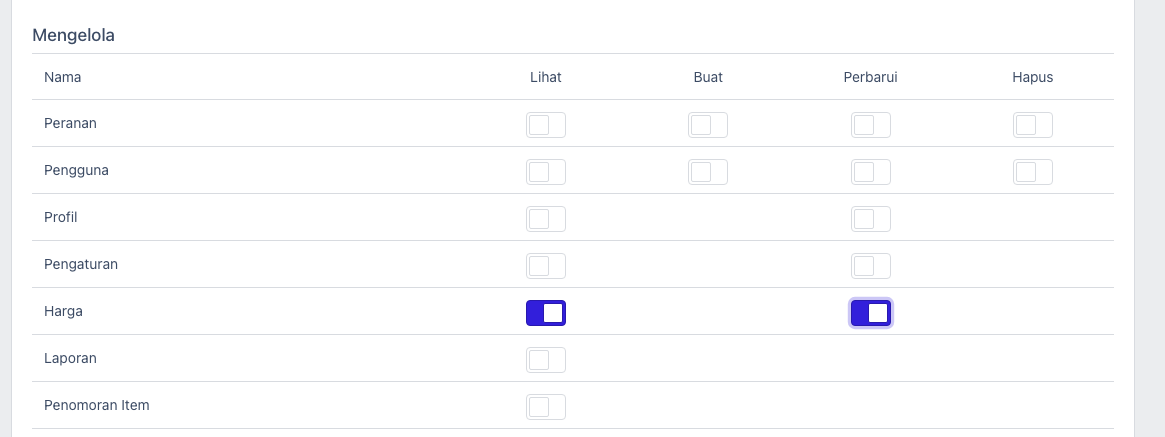
| Area | Controls |
|---|---|
| Transaction | Receipt, Issue, Move, Adjustment, and Stock Transformation list/create/update/delete. |
| Master Data | Item, Item Category, Unit of Measure, and Warehouse. |
| BOM | BOM list/create/update/delete for stock transformation recipes. |
| Report | Access to stock reports. |
| Settings | Company settings and company-level configuration. |
| Dashboard Access | Controls whether the user sees the admin dashboard, user dashboard, or no dashboard. |
| Price | The View switch allows price visibility. The Update switch allows price editing. |
| Custom Form | Item form and transaction form custom fields. |
| Import | Import item, category, UOM, warehouse, minimum stock, or transaction data. |
| Print Template | Manage transaction print layouts. |
| API Access | Manage API access tokens. |
Create a Role
- Open Roles & Permissions.
- Select Create Role.
- Fill a clear role name, such as
Warehouse StafforFinance Viewer. - Enable only the permissions needed by that role.
- Save the role.
- Assign the role to a test user and confirm the menu access.
Recommended Role Patterns
| Role | Typical Access |
|---|---|
| Administrator | Full settings, master data, users, transaction, BOM, report, import, and template access. |
| Warehouse Staff | Receipt/Issue/Move/Adjustment create access without settings, BOM, transformation, or price access. |
| Warehouse Supervisor | Transaction and report access, with update permission if needed. |
| Finance / Owner | Report access and price visibility when pricing is enabled. |
| Integrator Admin | API Access and limited supporting master data access. |
Operational Role Examples
| Role | Typical Permissions | Price Access |
|---|---|---|
| Admin | Settings, users, roles, all master data, BOM, all transactions, reports, imports, templates. | View and Update when company allows price. |
| Warehouse Staff | Receipt/Issue/Move create/update, selected master data view, no settings. | Usually none. |
| Supervisor | Transaction view/update, stock transformation if responsible for assembly/disassembly, reports, dashboard access, calendar period if responsible for closing. | View only if they review value. |
| Finance / Owner | Reports, print/export, pricing, API access if needed. | View, and Update only for trusted users. |
Use these as examples, not fixed templates. Remove permissions that are not needed by the user's daily work.
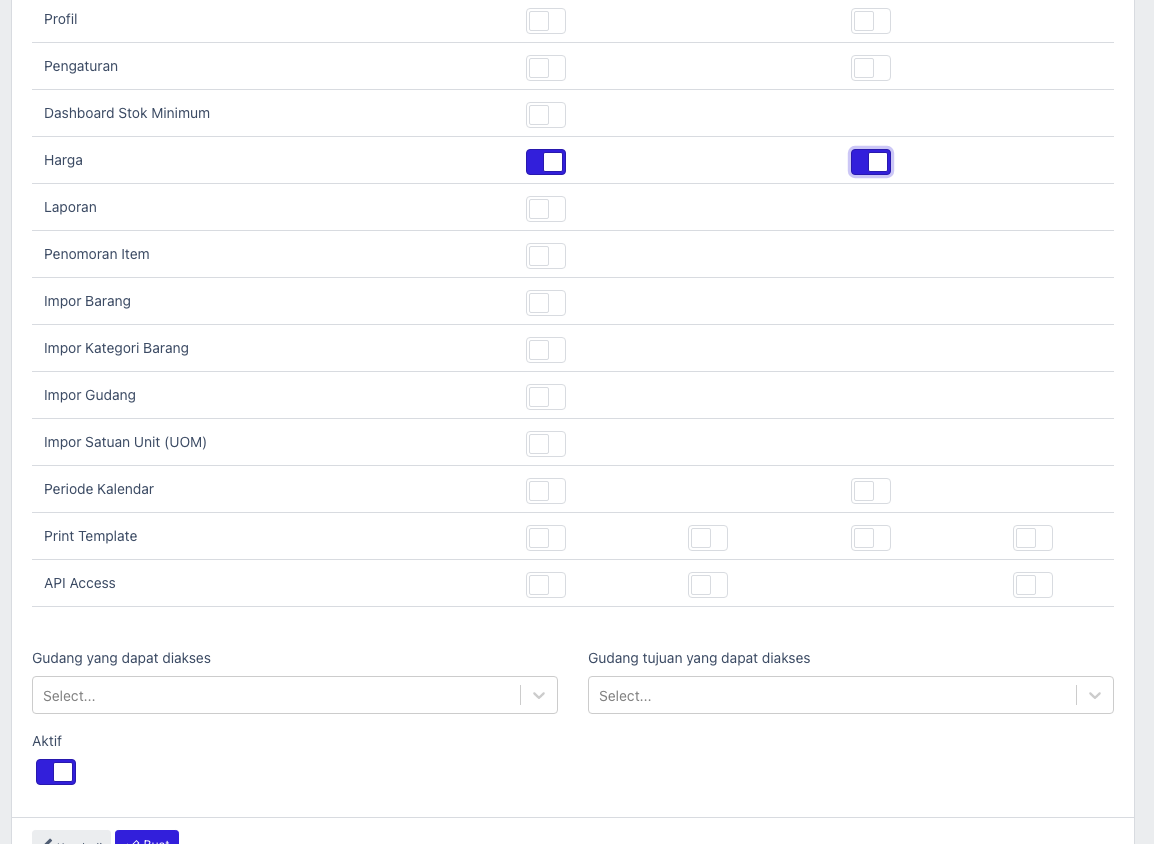
Price Row
| Role Table Column | Meaning |
|---|---|
| View | User can see Default Cost, Unit Price, Amount, and price-related report columns. |
| Update | User can edit Default Cost and transaction Unit Price when pricing is active. |
The app stores these as price permissions, but users see them in the Price row of the role table. Price permissions do nothing visually when company pricing is disabled.
Important: Role access decides what a user is allowed to open or do. It is separate from convenience defaults such as Default Warehouse on the user profile.
Use the warehouse access section in the role form to restrict which source and destination warehouses a user may access. Use Users only to assign the role and set personal defaults such as Default Warehouse.
Common Problems
| Problem | Fix |
|---|---|
| User sees too many menus | Remove unused permission from the user's role. |
| User cannot export or import | Check action-specific permission, not only view permission. |
| Price switch is on but user cannot see price | Check Enable Price in settings and the View switch on the Price row. |
| Role change is not visible immediately | Ask the user to refresh or log in again. |