
Transaction Category and Custom Fields
Transaction Category controls how transaction documents are classified, numbered, and printed. Custom Fields and Custom Form turn KartuStok into a lightweight operational form builder: the stock engine still uses transaction date, warehouse, item, and quantity, while custom fields capture the business context around that movement.
Menu Location and Access
Open Manage -> Transaction -> Transaction Category for transaction categories. Open Manage -> Custom Form for Custom Fields, Item Form, Receipt Form, Issue Form, Move Form, and Adjustment Form.
Transaction Category
Transaction categories classify documents and determine which transaction type they can be used for. A category can be enabled for one or more transaction types: Item Receipt, Item Issue, Item Move, Item Adjustment, Item Assembly, and Item Disassembly.
| Field / Option | What It Does |
|---|---|
| Name | The category users select in the transaction form. |
| Transaction type flags | Controls whether the category is available for Item Receipt, Item Issue, Item Move, Item Adjustment, Item Assembly, Item Disassembly, or more than one type. |
| Print Template | Assigns a transaction print layout to documents using this category. |
| Merge Duplicate Scanned Item | When enabled, duplicate scanned items can be merged in transaction entry instead of added as separate lines. |
| Allow Future Transaction Date | Controls whether users can complete documents dated after today for this category. |
| Active | Controls whether the category can still be selected. |
When a category is created for a transaction type, KartuStok also prepares document numbering for that category and type. Plan categories before operational users create many documents.
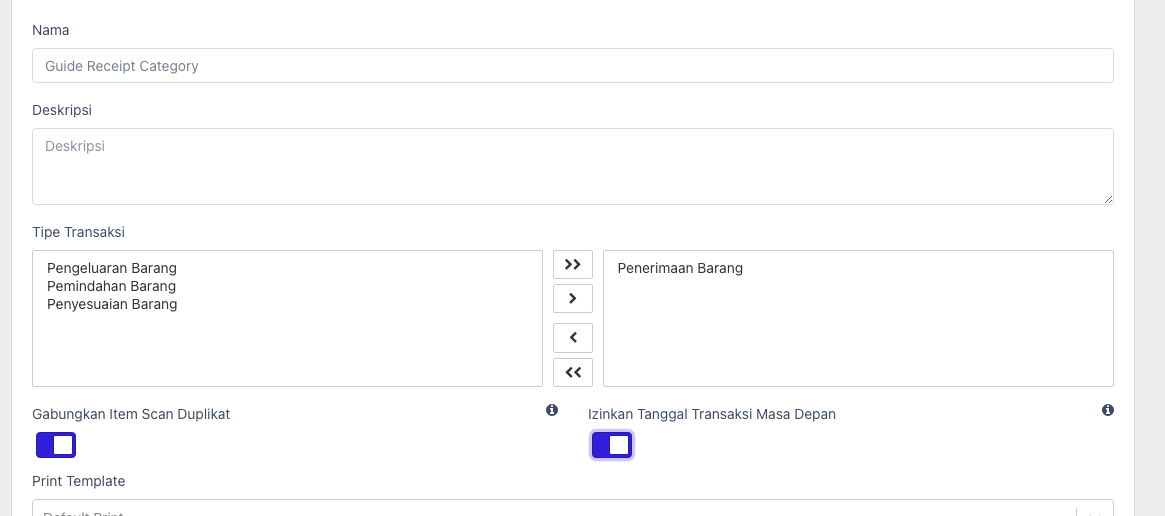
Important: Item Assembly and Item Disassembly are stock transformation documents. Create separate categories for them when the company needs different numbering, print layout, or review flow from ordinary stock transactions.
Merge Duplicate Scanned Item
Use Merge Duplicate Scanned Item when users scan or quick-search the same item repeatedly during transaction entry. This is useful for barcode-heavy receipt, issue, or move workflows where the same item may be scanned multiple times.
| Setting | Result in Transaction Entry |
|---|---|
| Enabled | Scanning the same item again can keep one line and increase its quantity. |
| Disabled | Duplicate scans are not merged by this category setting, so users should review the resulting transaction lines before completing. |
Example: a warehouse user receives the same item twice during one receipt. With this option enabled, the first scan creates quantity 1; the second scan updates the same line to quantity 2.
Important: This option is controlled by the selected transaction category. If users choose another category, duplicate scan behavior follows that category's setting.
Allow Future Transaction Date
Use Allow Future Transaction Date only when the company intentionally allows users to complete documents with a transaction date after today.
| Setting | Result |
|---|---|
| Enabled | Users can complete future-dated documents for this category. The app shows a warning because stock is updated now, while date-limited reports may not show the movement until that future date. |
| Disabled | Users cannot complete future-dated documents for this category. The app returns an error that future transaction date is not allowed. |
This setting applies when the document is completed. Drafts can still be prepared and reviewed before completion.
Custom Fields as Operational Form Builder
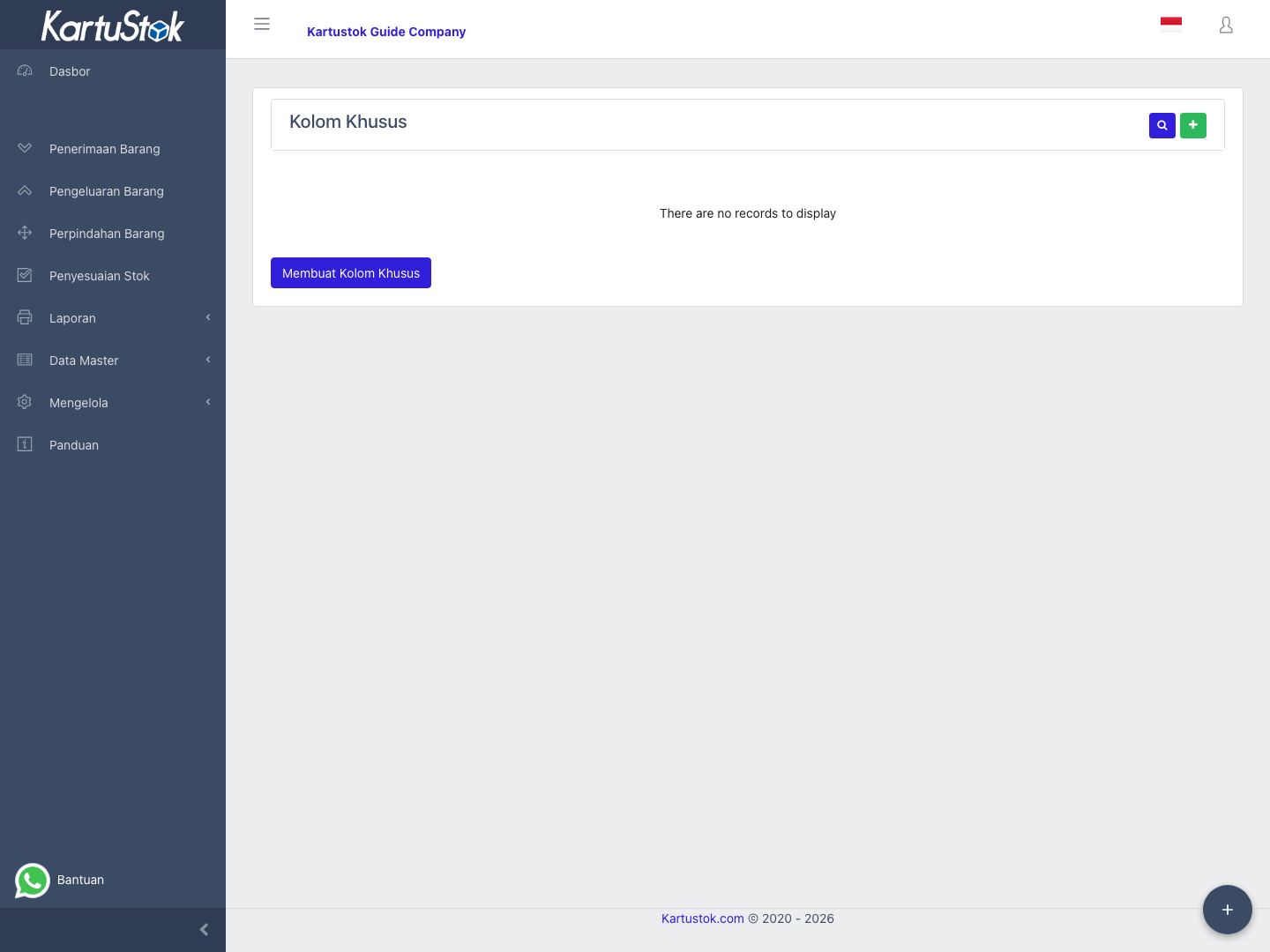
Use custom fields when standard fields are not enough. Create a custom field first, then place it into the relevant form. The supported custom field types are Text, Textarea, Dropdown, Date, Time, and File.
Custom Fields is the master list of reusable fields. The form pages decide where those fields appear. A field created in Custom Fields will not appear in Item, Receipt, Issue, Move, or Adjustment until it is assigned to the related form.
Important: Custom Fields are available for Item, Receipt, Issue, Move, and Adjustment forms. They are not available for Stock Transformation documents.
Recommended usage:
| Type | Best For | Example |
|---|---|---|
| Text | Short identifiers. | PO Number, Delivery Order No, Batch No. |
| Textarea | Longer notes. | QC remarks, rejection reason, stock opname notes. |
| Dropdown | Controlled choices. | QC Status: Accepted / Hold / Rejected. |
| Date | Operational dates. | Expiry Date, Planned Delivery Date. |
| Time | Time-of-day tracking. | Loading Time, Receiving Time. |
| File | Supporting evidence. | Photo of delivery order, signed handover form, count sheet. |
General Setup Pattern
Use the same pattern for every custom form:
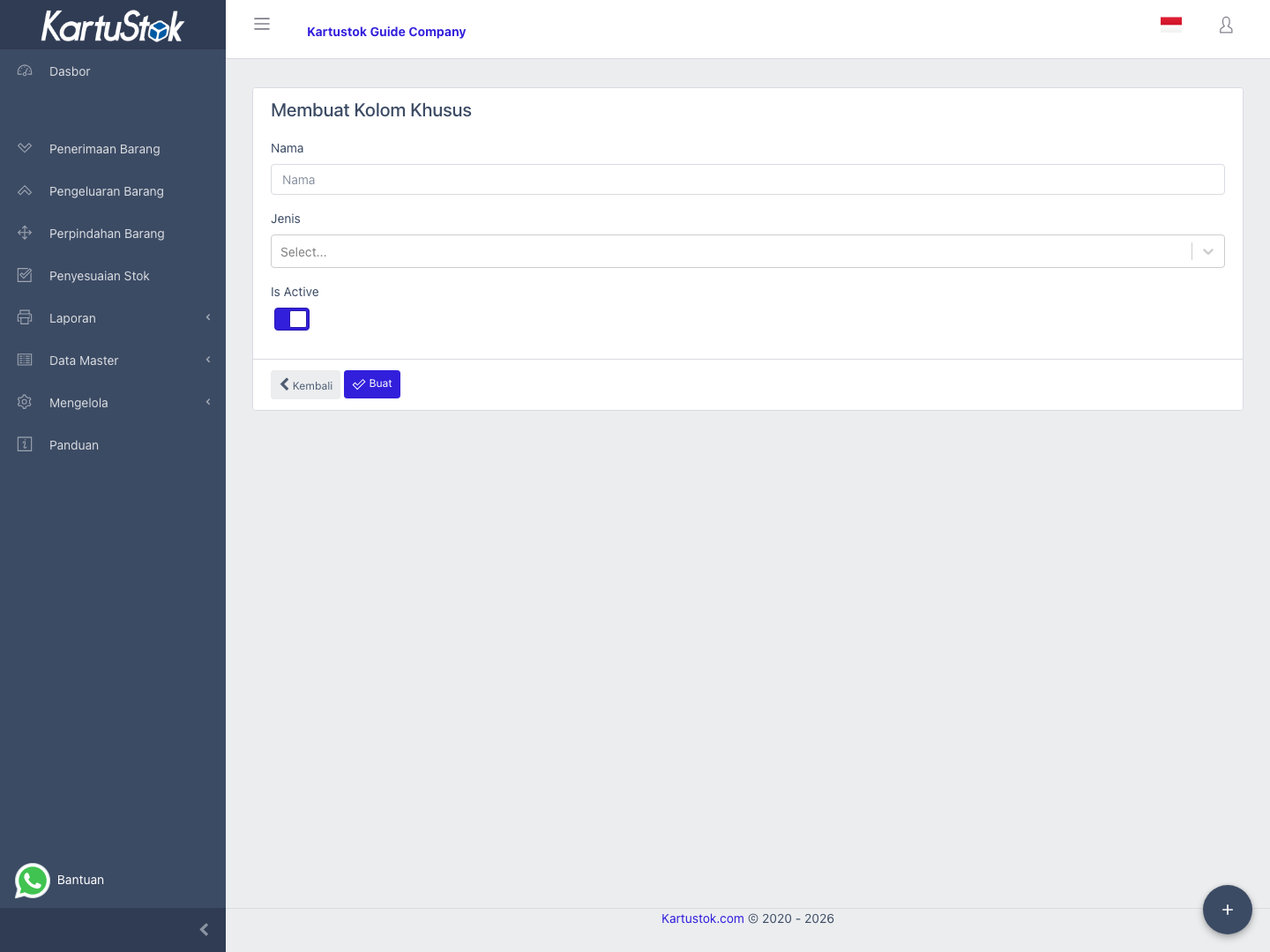
- Create the field in Manage -> Custom Form -> Custom Fields.
- Choose the right field type and activate it.
- Open the target form: Item Form, Receipt Form, Issue Form, Move Form, or Adjustment Form.
- Move the field from Available Custom Fields to Selected Fields.
- Mark it mandatory only when the process should not continue without that data.
- Save the form and test create/update on the related item or transaction page.
- Add the field to Print Template if the printed document must show it.
Recommended Fields by Form
These are recommended practices, not built-in mandatory fields. Add only what your operation needs.
| Form | Suggested Custom Fields | Why They Help |
|---|---|---|
| Item Form | Brand, Model, Size, Storage Rule, Batch Required, Barcode Note. | Makes item master data clearer for warehouse users. |
| Receipt Form | PO Number, Supplier, Delivery Order No, Received By, QC Status, Batch No, Expiry Date, Attachment. | Turns receipt into a goods receipt form that can be audited against supplier documents. |
| Issue Form | Requester, Department, Project, Customer / Work Order, Approved By, Usage Reason. | Explains why stock left the warehouse. |
| Move Form | Transfer Request No, Requested By, Driver, Vehicle No, Dispatch Time, Received By. | Tracks responsibility during warehouse transfer. |
| Adjustment Form | Stock Opname No, Count Team, Count Date, Reason, Approval Note, Count Sheet Attachment. | Documents why stock was corrected. |
Item Form
Use Item Form when the item master needs extra product context. This is useful for barcode notes, storage rules, technical specifications, or item ownership.
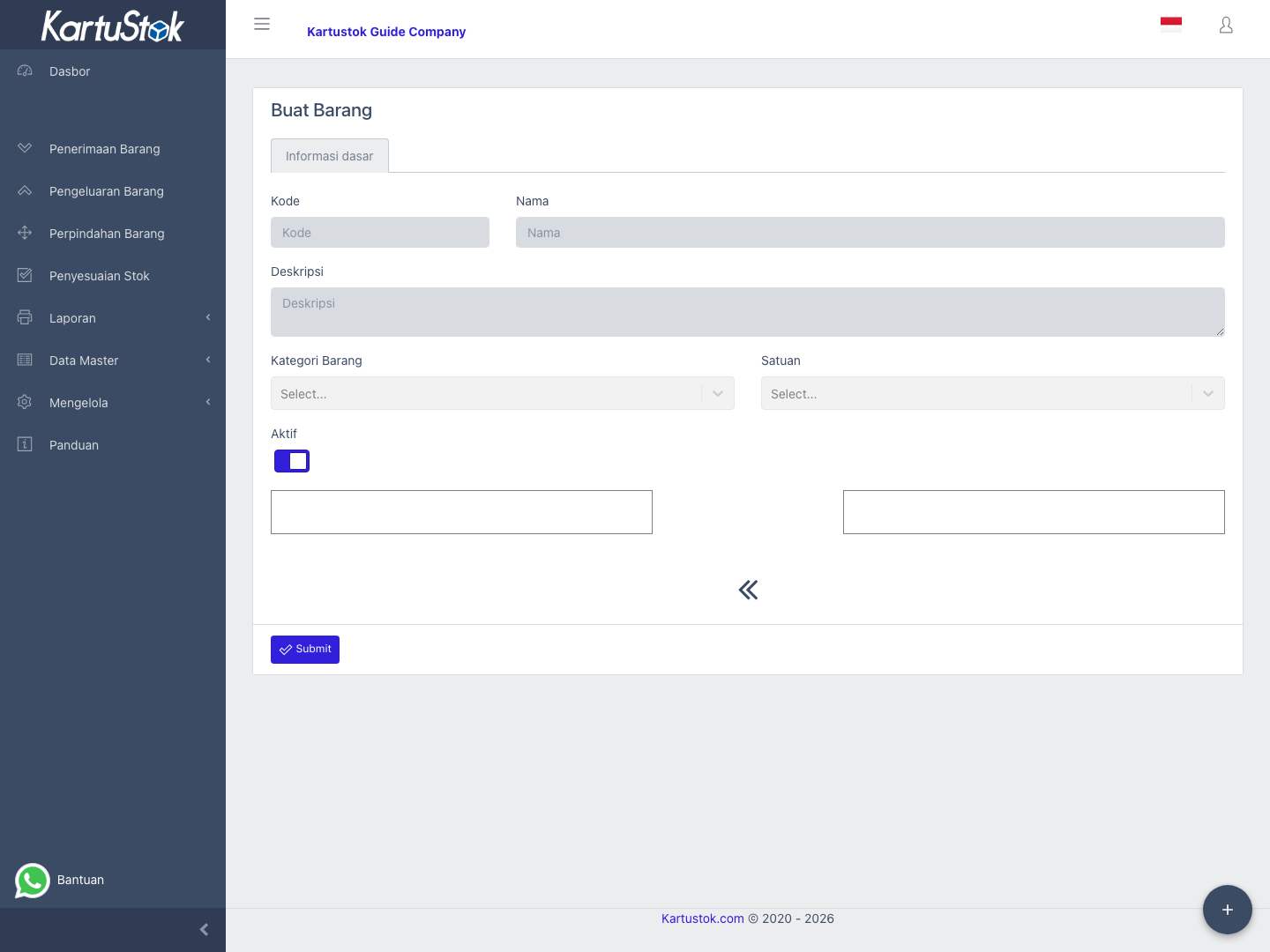
| Recommended Field | Suggested Type | When to Make Mandatory |
|---|---|---|
| Brand / Model | Text | Mandatory only for technical spare parts where similar items are easy to confuse. |
| Storage Rule | Textarea | Optional unless storage rule is required for safety or compliance. |
| Batch Required | Dropdown | Mandatory if the company must know whether an item needs batch tracking. |
| Barcode Note | Text | Optional; use when item labels have multiple barcodes or scan instructions. |
After updating Item Form, test Master Data -> Item -> Create Item and Update Item. If a field is mandatory, old items may need the value filled during update.
Receipt Form
Use Receipt Form to turn a receipt into a goods receipt form. The stock calculation still uses warehouse, item, and quantity; the custom fields explain the receiving context.
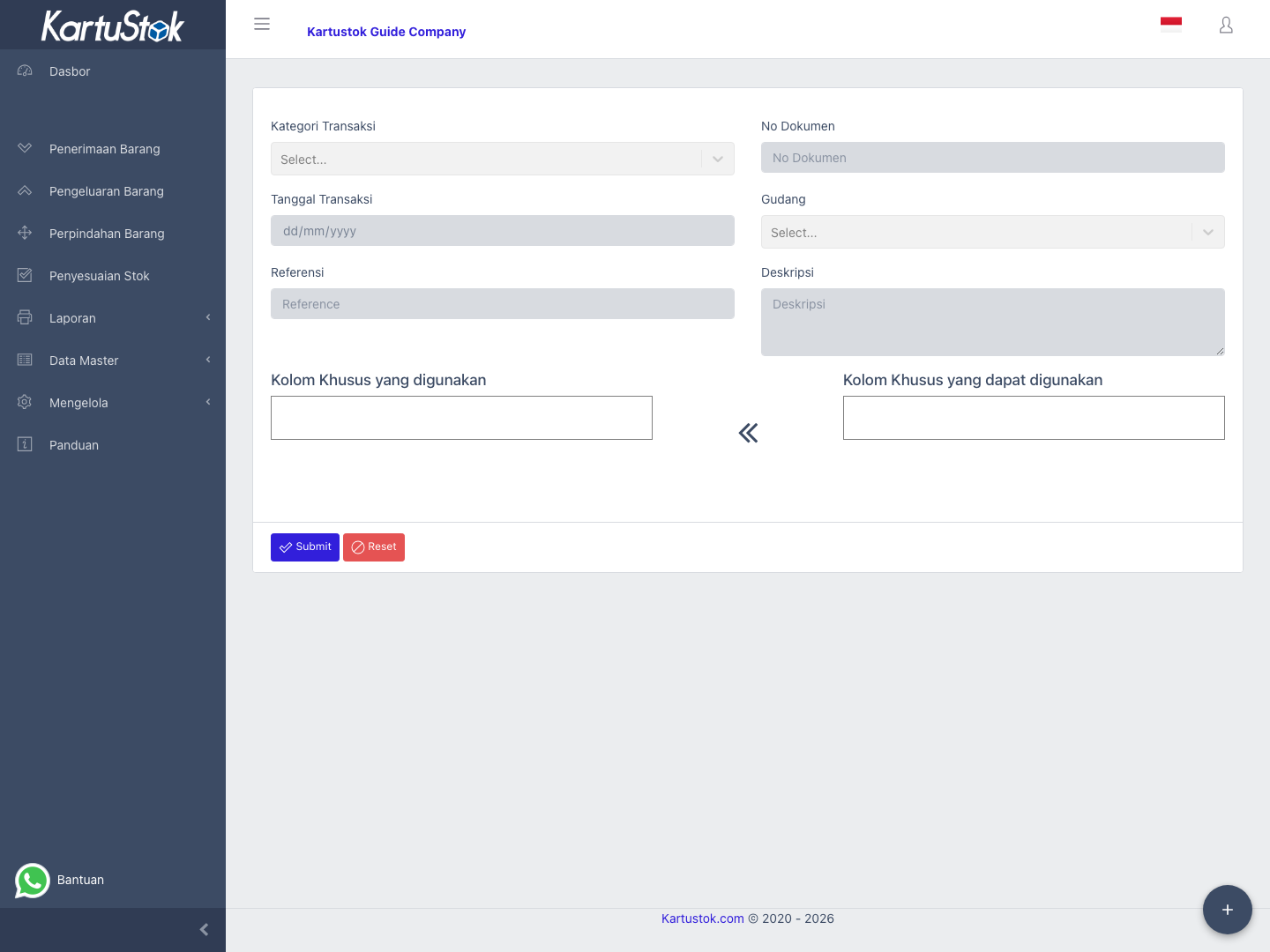
| Recommended Field | Suggested Type | Why It Helps |
|---|---|---|
| PO Number | Text | Links receipt to purchase order. |
| Supplier | Text or Dropdown | Identifies who delivered the goods. |
| Delivery Order No | Text | Matches supplier delivery note. |
| QC Status | Dropdown | Standardizes Accepted / Hold / Rejected decisions. |
| Batch No / Expiry Date | Text / Date | Supports traceability for batch-sensitive or perishable goods. |
| Attachment | File | Stores delivery note photo or signed receipt. |
Make receipt fields mandatory only if the warehouse should not complete goods receipt without that information.
Issue Form
Use Issue Form to explain why stock leaves the warehouse. Different companies use Issue for production, customer delivery, internal usage, or write-off.
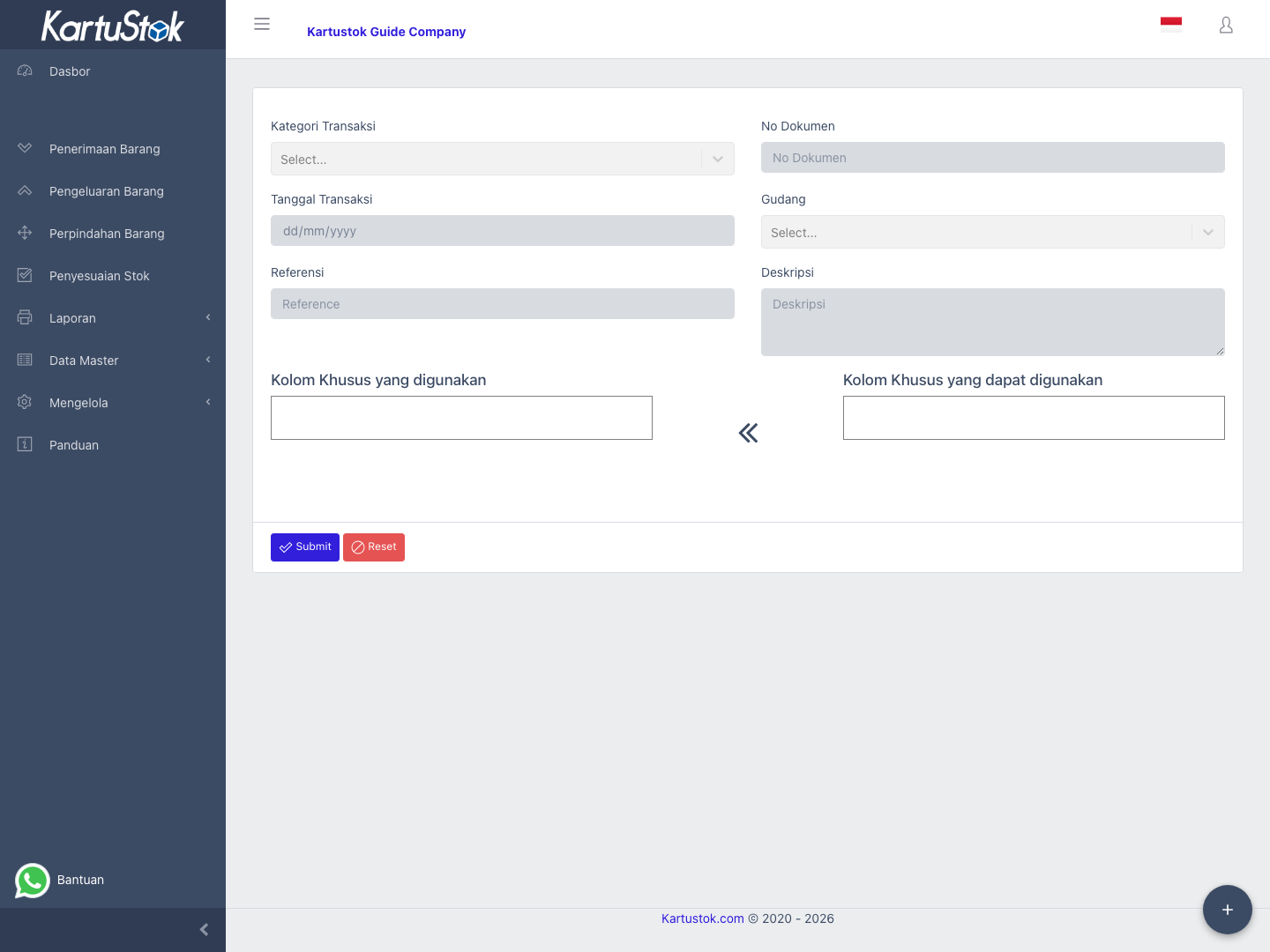
| Recommended Field | Suggested Type | Why It Helps |
|---|---|---|
| Requester / Department | Text or Dropdown | Shows who requested stock. |
| Production Order No | Text | Links stock-out to production usage. |
| Customer / Work Order | Text | Links issue to customer or job context. |
| Approved By | Text or Dropdown | Captures release approval. |
| Usage Reason | Textarea | Explains non-standard stock-out. |
Move Form
Use Move Form when transfer documents need handover context beyond source and destination warehouses.
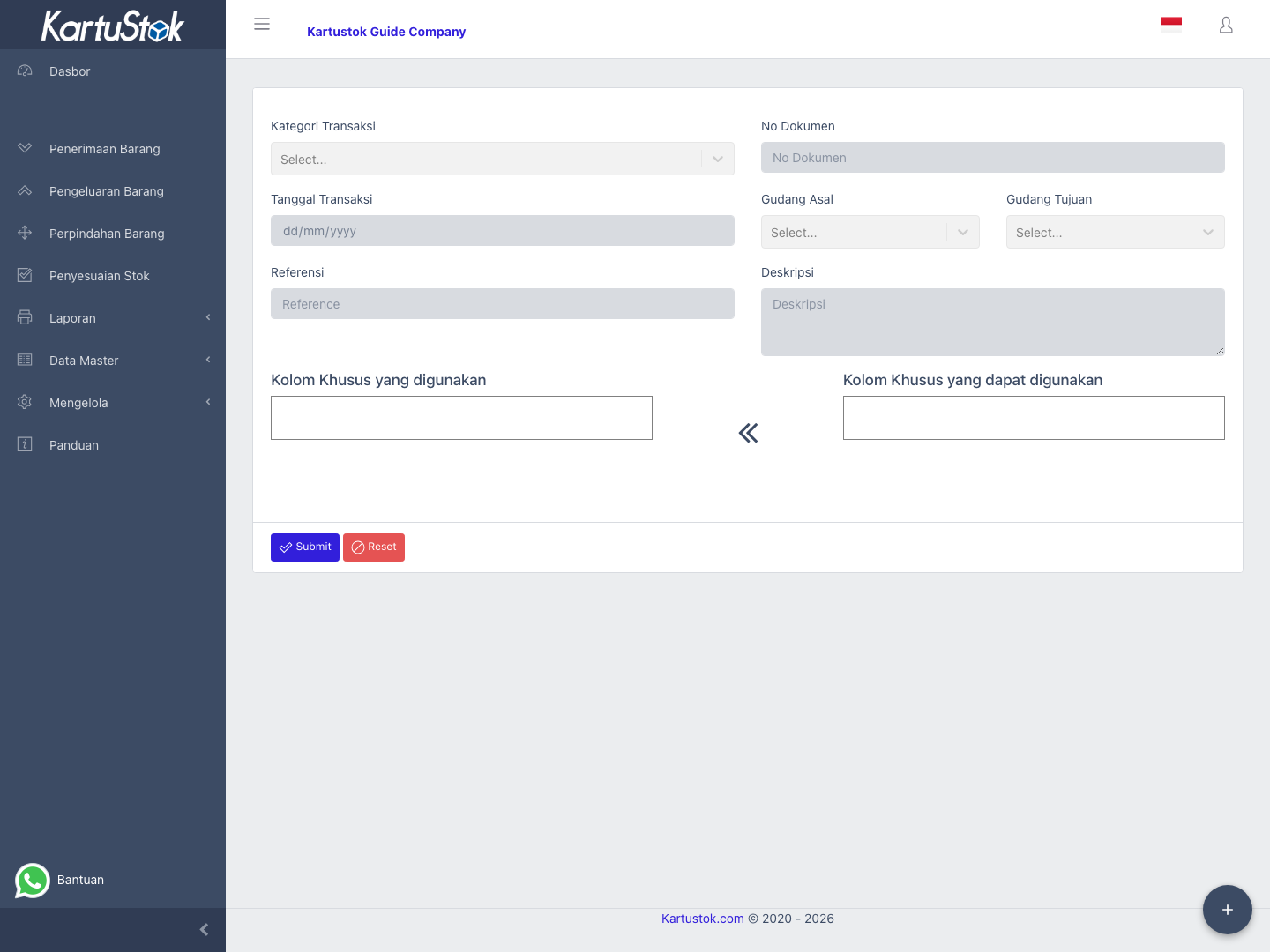
| Recommended Field | Suggested Type | Why It Helps |
|---|---|---|
| Transfer Request No | Text | Connects movement to internal request. |
| Requested By / Received By | Text or Dropdown | Clarifies responsibility on both sides. |
| Driver / Vehicle No | Text | Supports physical delivery tracking. |
| Dispatch Time | Time | Records when goods leave the source warehouse. |
| Staging Location | Text | Useful when goods pass through staging before final shipment. |
Adjustment Form
Use Adjustment Form for audit evidence around stock opname, correction, shrinkage, or damaged goods.
| Recommended Field | Suggested Type | Why It Helps |
|---|---|---|
| Stock Opname No | Text | Links correction to stock count event. |
| Count Team / Count Date | Text / Date | Captures who counted and when. |
| Reason | Dropdown or Textarea | Standardizes variance reasons. |
| Approval Note | Textarea | Records approval context before completing correction. |
| Count Sheet Attachment | File | Stores physical count evidence. |
Configure a Transaction Form
- Create custom fields in Custom Fields.
- Open the related form: Receipt Form, Issue Form, Move Form, or Adjustment Form.
- Move fields from Available Custom Fields to Selected Fields.
- Mark a field mandatory only when the transaction should not be completed without that data.
- Test create and update flows with the new fields.
- Add important custom fields to Print Template if the printed document must show them.
Mandatory Field Guidance
| Field Kind | Mandatory? | Reasoning |
|---|---|---|
| Legal or audit reference | Usually yes. | Example: PO Number for purchase receipt. |
| Operational note | Usually no. | Notes are useful, but users may not always have extra detail. |
| QC status | Yes when QC is part of receiving. | Prevents goods from being accepted without quality decision. |
| File attachment | Usually no. | File upload can slow down field operations unless evidence is required. |
Common Problems
| Problem | Fix |
|---|---|
| Category is missing in a transaction form | Confirm the category is active and enabled for that transaction type. |
| Print uses the wrong layout | Check the Print Template assigned to the transaction category. |
| Field does not appear | Check the custom field is active and placed in the related form. |
| Users cannot complete document | A required custom field may be empty. |
| Field meaning is unclear | Rename it before more data is entered. |
| Print does not show custom field | Add the field to the print template layout. |