
Onboarding Wizard
Use this page when a new company is guided into setup by KartuStok itself. The onboarding wizard is a real in-app flow that helps administrators prepare the minimum master data before daily stock work starts.
What This Wizard Does
The onboarding wizard helps a company create the minimum setup in sequence:
- Warehouse
- Unit of Measure
- Item Category
- First Item
It is a guided setup path. It does not replace the rest of the guide, and it does not configure every advanced feature.
If Warehouse Grouping is enabled in Company Settings, the warehouse step follows the two-level structure used by the app: Warehouse Group first, then Location inside that group.
When Onboarding Appears
KartuStok treats onboarding as required when the company still has no active warehouse, no active unit of measure, or no active item category.
If those master data already exist but the company still has no active item, the company enters a first-item-pending state. In that case, the dashboard can show a shortcut to continue setup and create the first item.
Read New Company Quick Start if you want the same setup logic in manual checklist form.
Who Can Use It
The onboarding wizard is not automatically available to every logged-in user.
| User | Access Rule |
|---|---|
| Owner | Can manage onboarding. |
| Superadmin | Can manage onboarding. |
| Other users | Can manage onboarding only if they can create warehouse, UOM, item category, and item. |
Important: The initial stock option on the item step depends on adjustment-create access. A user may be able to complete onboarding but still not see the initial stock fields.
Step-by-Step Flow
Step 1: Warehouse
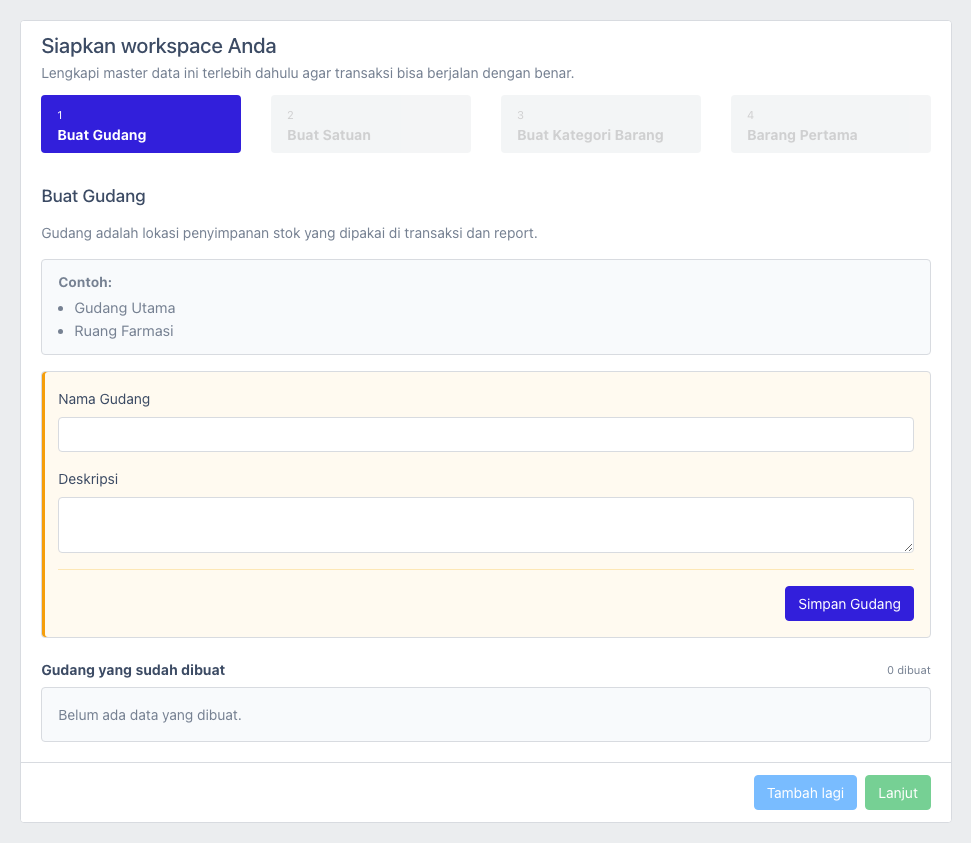
Create the first warehouse used for stock storage. Use a clear operational name so the warehouse team recognizes it immediately in transactions and reports.
When Warehouse Grouping is active, use the group for the branch/site name and the location for the actual stock point. For example, Bandung Branch can contain Main Storage and Return Area.
See Master Data: Warehouse for full warehouse guidance.
Step 2: Unit of Measure
Create the first counting unit for items, such as PCS, Box, or Kg. The wizard asks for the unit code, full name, and precision.
See Master Data: Unit of Measure for precision and naming guidance.
Step 3: Item Category
Create the first category that groups similar items. This helps search, filters, and reports stay readable.
See Master Data: Item Category for naming examples and import options.
Step 4: First Item
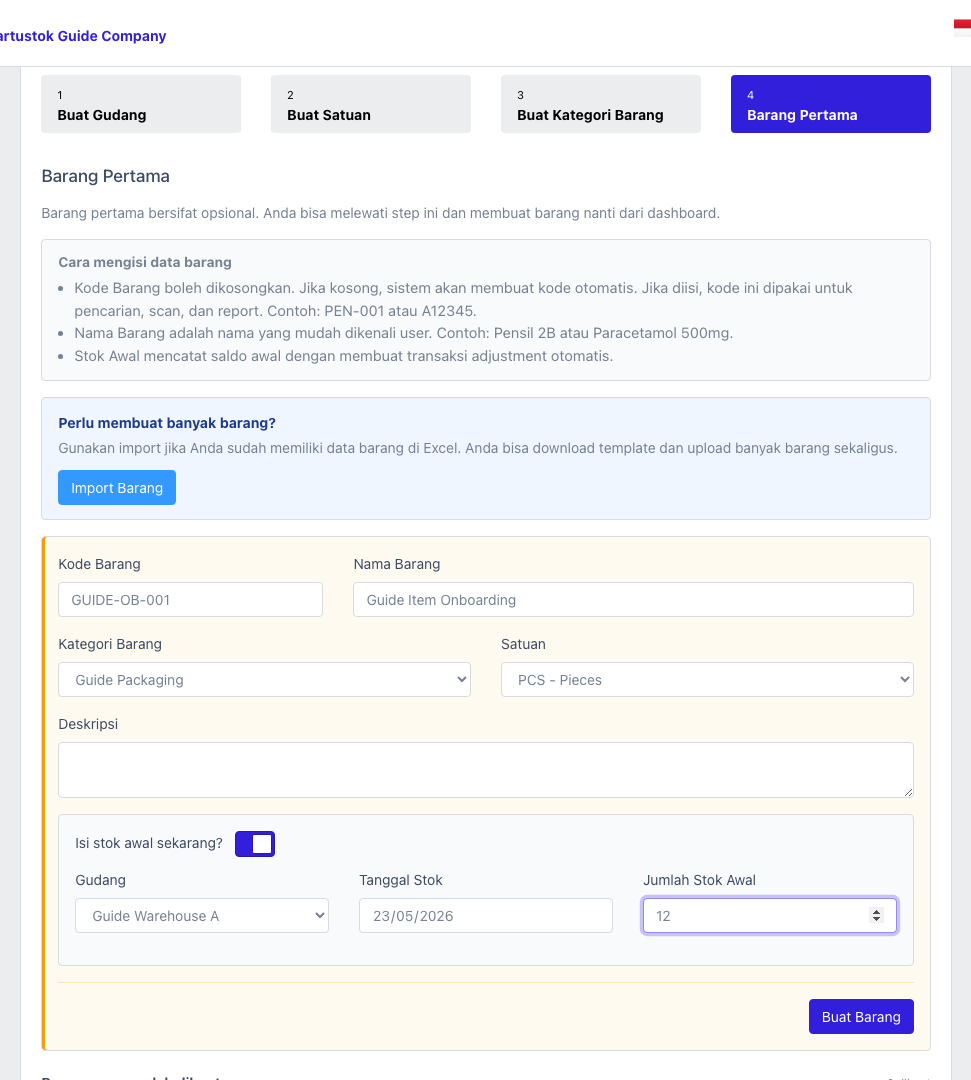
Create the first stock-tracked item with code, name, category, and unit of measure. This finishes the minimum master-data setup needed to start recording stock.
See Master Data: Item for the full item setup guide.
Optional Initial Stock
On the item step, KartuStok can also create initial stock for the first item if the user has permission to create adjustment transactions.
Initial stock is optional in the wizard, but it is useful when the company already has physical stock before daily transactions begin.
The initial stock section asks for:
| Field | Purpose |
|---|---|
| Warehouse | Where the opening stock is stored. If Warehouse Grouping is active, choose the group and location shown by the app. |
| Date | The starting date for the initial stock record. |
| Quantity | The opening quantity for the first item. |
If initial stock is not created during onboarding, the company can still set starting stock later through the normal operational process described in Transaction: Adjustment.
What Happens After Onboarding
The wizard can end in two valid ways:
| Outcome | Meaning |
|---|---|
| First item was created | The company already has the minimum master data plus the first stock-tracked item. |
| First item was skipped | The company can return later from the dashboard to create the first item manually. |
If the first item was created, continue with normal warehouse work:
- Review the first item and opening stock.
- Record the first operational transaction such as Receipt, Issue, or Move.
- Confirm the result in Detail Stock Card or Summary Stock Card.
If the first item was skipped, return from the dashboard and create the first item before recording normal stock transactions.
Common Problems
| Problem | Fix |
|---|---|
| User is redirected away from the dashboard to onboarding. | The company still lacks required setup and the user has permission to manage onboarding. Complete the wizard first. |
| User cannot open onboarding. | Check whether the user is owner, superadmin, or has the required create permissions for warehouse, UOM, item category, and item. |
| Initial stock fields do not appear. | Check whether the user can create adjustment transactions. |
| Dashboard still asks for setup after onboarding. | Confirm the created warehouse, UOM, item category, and item are active and saved in the correct company. |