
Stock Transformation
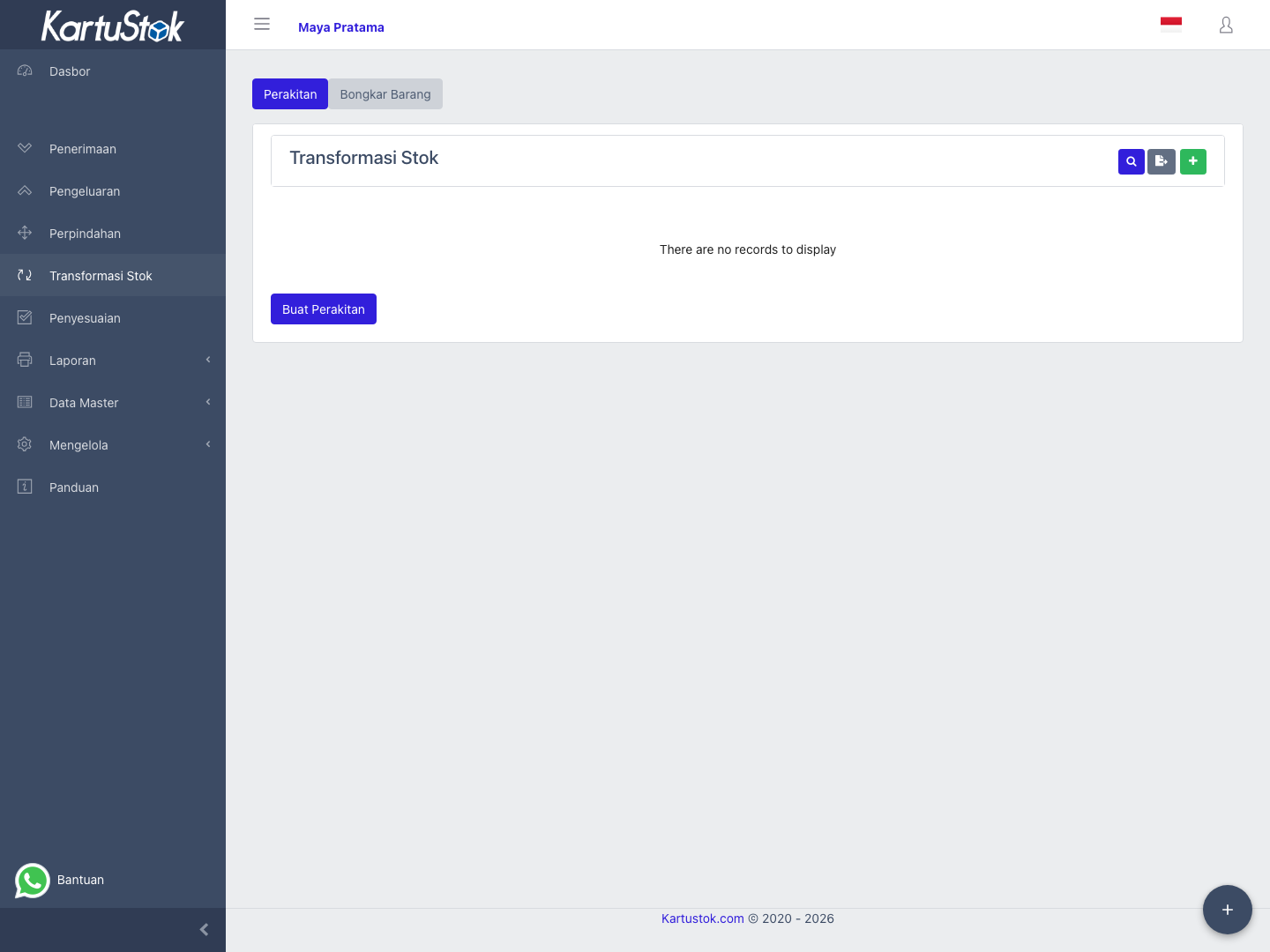
Stock Transformation records stock changes where one set of items becomes another set of items. KartuStok supports two transformation flows: Assembly and Disassembly.
Use this feature when ordinary Receipt, Issue, Move, or Adjustment does not describe the operation clearly enough. The common examples are product assembly, kit building, repacking, and breaking assembled goods back into components.
Menu Location and Access
Open Stock Transformation, then create an Assembly or Disassembly document. The role must include Stock Transformation access. The form loads active BOM records; maintaining BOM recipes separately requires BOM permissions.
Assembly vs Disassembly
| Flow | Stock Effect |
|---|---|
| Assembly | Component/input items decrease. Parent/output item increases. |
| Disassembly | Parent/input item decreases. Component/output items increase. |
Assembly and Disassembly are stock transactions. They can be saved as draft or completed. Stock is affected after the document is completed.
Required Setup
Before creating a stock transformation document, prepare:
| Requirement | Why It Matters |
|---|---|
| Items and UOM | Parent and components must already exist as active items. |
| Warehouse | The transformation needs a warehouse where stock is consumed and produced. |
| BOM | The system uses BOM to generate input and output lines. |
| Transaction Category | Category must be enabled for Assembly or Disassembly. |
| Document Numbering | Category/type numbering must be available so the document number can be generated. |
| Calendar Period | The transaction month/type must not be locked. |
Important: Import is not available for Stock Transformation. Users create Assembly and Disassembly from the transformation form so the system can generate lines from the selected BOM.
Important: Custom Fields are not available for Stock Transformation. Use standard fields such as Reference and Description, and use Print Templates when the printed document needs transformation-specific information.
Important Fields
| Field | Meaning |
|---|---|
| Transaction Category | Category enabled for Item Assembly or Item Disassembly. It controls document numbering and print template assignment. |
| No Document | Generated document number for the selected category and transaction type. |
| Transaction Date | Date used for stock movement and Calendar Period lock checks. |
| Warehouse | Warehouse where input stock is consumed and output stock is produced. If warehouse grouping is enabled, select the warehouse/locator combination shown by the app. |
| BOM | Active recipe used to generate input and output lines. |
| Parent Quantity | Quantity of the BOM parent item to assemble or disassemble. This must be greater than zero. |
| Reference | Optional operational reference, such as work order, kit request, or repacking batch. |
| Description | Optional note for reviewers or printed document context. |
| Document Status | Draft does not affect stock; completed documents update stock. |
| Input Items / Input Parent Item | Lines that reduce stock when the document is completed. |
| Output Parent Item / Output Items | Lines that increase stock when the document is completed. |
Create an Assembly
- Open Stock Transformation and create Assembly.
- Select transaction date, warehouse, transaction category, and BOM.
- Fill Parent Quantity.
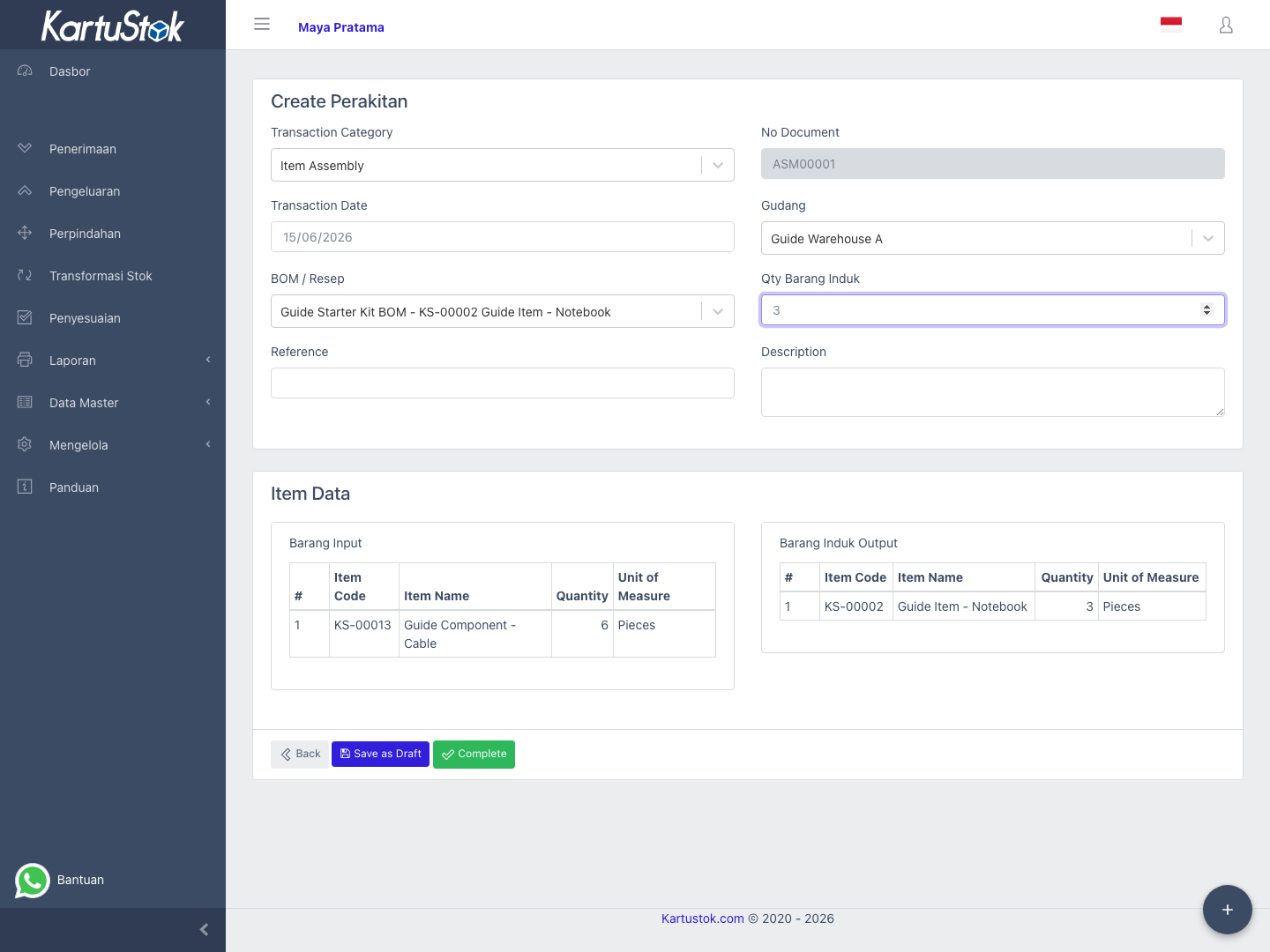
- Let KartuStok generate input component lines and output parent line.
- Review quantities before completing.
- Save as draft if it still needs review, or complete it when ready.
Example: create 10 SET Starter Kit. The component items such as manual, cable, and box decrease; the parent item Starter Kit increases.
The Assembly form shows the selected BOM, warehouse, parent quantity, generated input component line, and generated output parent line.
Create a Disassembly
- Open Stock Transformation and create Disassembly.
- Select transaction date, warehouse, transaction category, and BOM.
- Fill Parent Quantity.
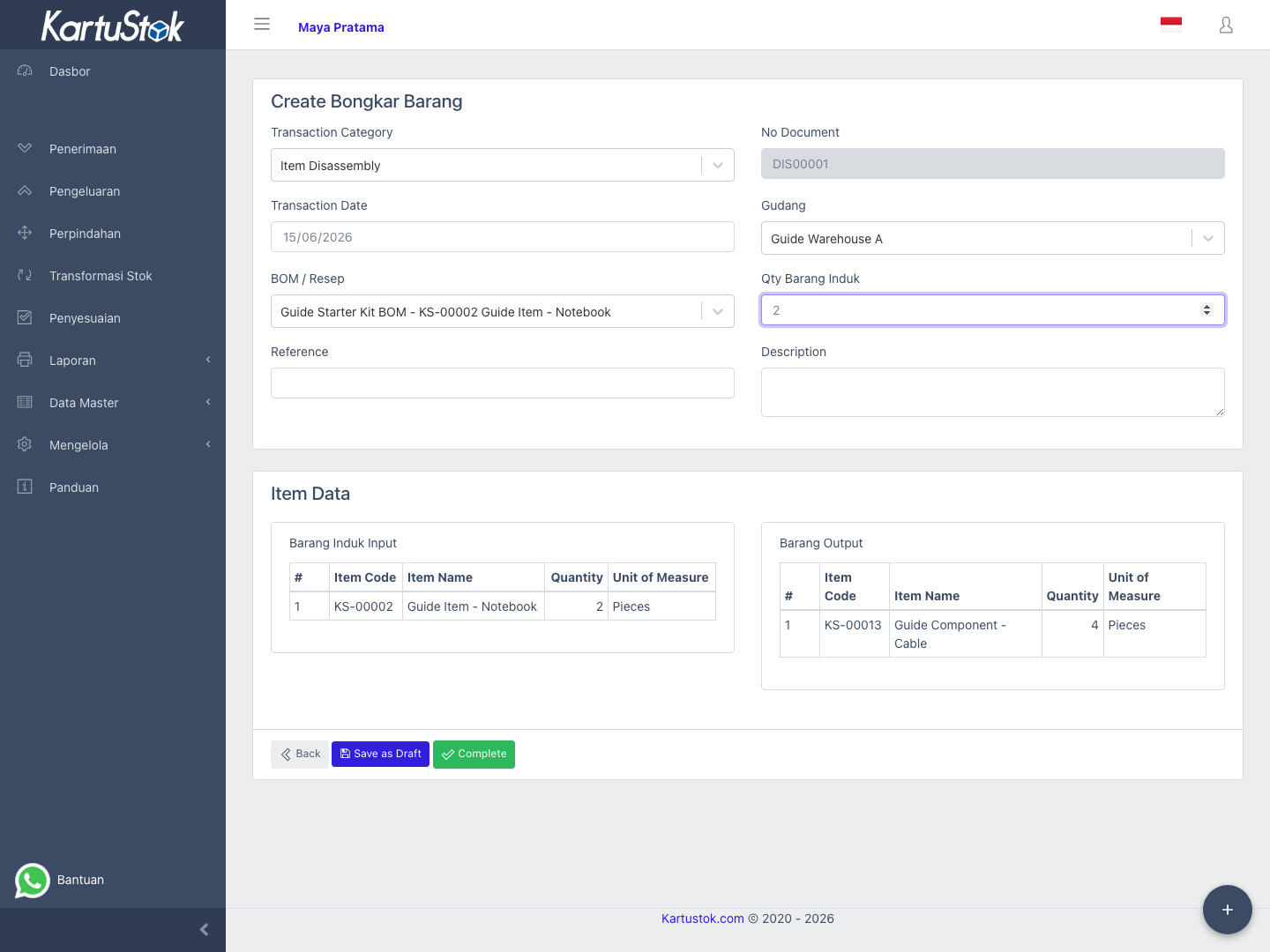
- Let KartuStok generate the input parent line and output component lines.
- Review quantities before completing.
- Save as draft if it still needs review, or complete it when ready.
Example: break down 5 SET Starter Kit. The parent item decreases; components such as manual, cable, and box increase.
The Disassembly form reverses the direction: the parent item becomes the input line, and the component items become output lines.
Report and Print Impact
Completed stock transformation appears in stock reports as ItemAssembly or ItemDisassembly. Use Detail Stock Card when you need to audit the input/output movement and use Print Templates if the printed document needs BOM, parent quantity, input items, or output items.
Common Problems
| Problem | Fix |
|---|---|
| No active BOM found | Create or activate a BOM before creating stock transformation. |
| Parent quantity is rejected | Fill a number greater than zero. |
| Lines do not appear | Select a valid active BOM and parent quantity. |
| Document number cannot be generated | Check transaction category and document numbering for Item Assembly or Item Disassembly. |
| Transaction cannot be completed | Check stock availability, calendar period lock, future date setting, and role permission. |