
Transaction: Adjustment
Adjustment corrects recorded stock based on physical count or operational correction. Use it carefully because it directly changes stock balance.
Menu Location and Access
Open Adjustment from the sidebar. Only trusted users should have create or update adjustment permission.
Field Guide
| Field | Meaning |
|---|---|
| Transaction Category | Classifies the adjustment reason. |
| No Document | Document number according to transaction category numbering. |
| Transaction Date | Date of the correction. |
| Warehouse | Warehouse being adjusted. |
| Reference | Audit reference such as stock opname number. |
| Description | Standard correction note. |
| Document Status | Draft does not update stock; Complete applies correction. |
| Item / Quantity Count | Item lines and counted or corrected quantity. |
| Quantity Book | System quantity shown for adjustment context when available. |
| Custom Fields | Extra audit data configured in Adjustment Form. |
If Warehouse Grouping is enabled, choose the Warehouse Group first, then the Location being counted or corrected. See Master Data: Warehouse for the structure.
Important: Use Adjustment only for correction or stock opname. Do not use it for normal stock-in, stock-out, or warehouse transfer.
Adjustment Form Examples
Recommended custom fields below are examples, not built-in fields. Add them only if they match your correction or stock opname process.
| Scenario | Recommended Custom Fields | Why They Help |
|---|---|---|
| Stock opname | Stock Opname No, Count Team, Count Date, Count Sheet Attachment. | Connects adjustment to physical count evidence. |
| Physical variance | Variance Reason, Investigated By, Approval Note. | Explains why system and physical stock differ. |
| Input correction | Original Document No, Correction Reason, Approved By. | Links correction to the document that caused the issue. |
| Shrinkage or damage | Loss Reason, Incident Date, Photo Attachment. | Supports audit for stock loss. |
Create an Adjustment
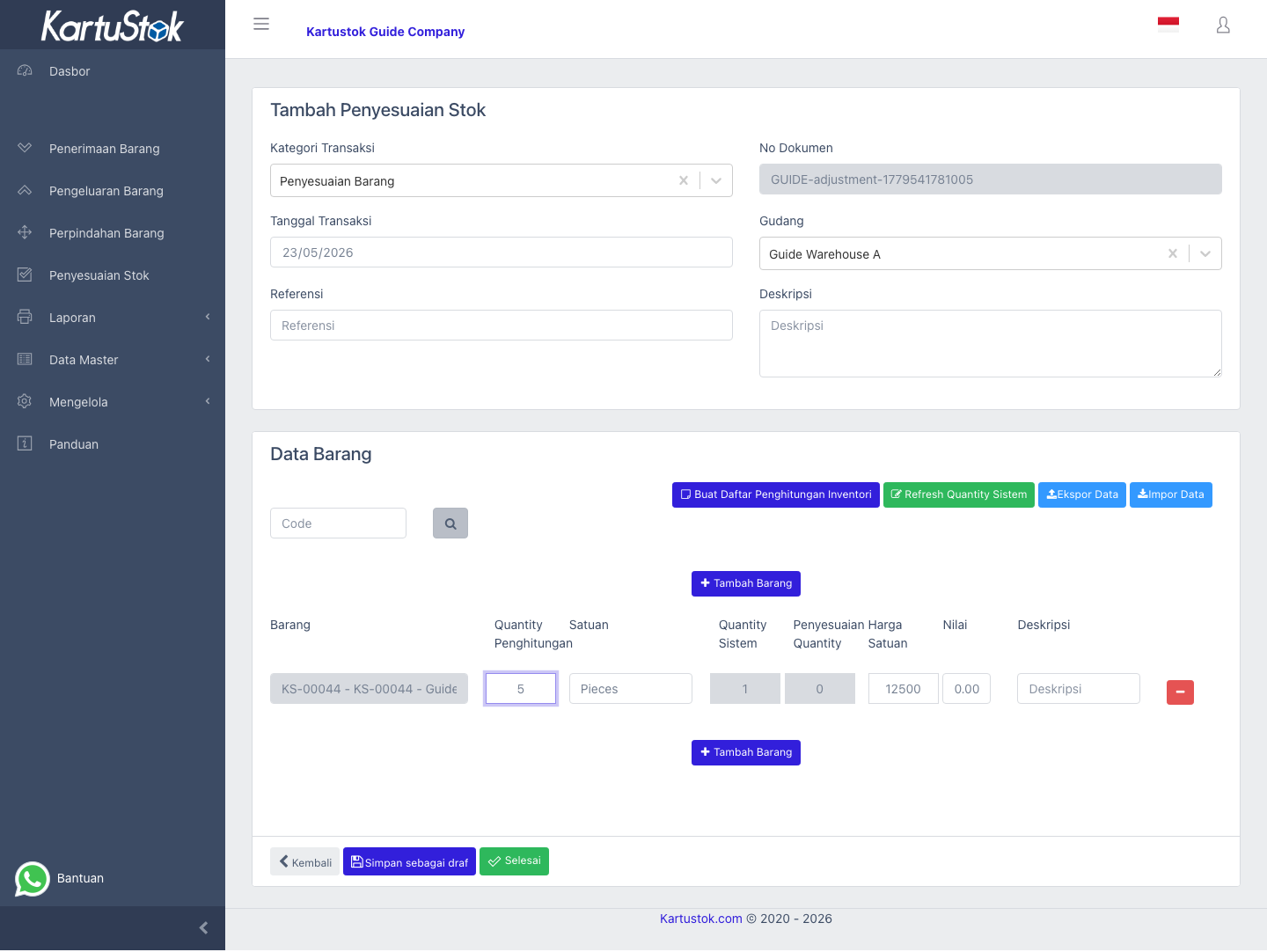
- Open Adjustment and select Create Adjustment.
- Choose transaction category and transaction date.
- Select warehouse.
- Fill reference and description clearly.
- Add item lines and counted or corrected quantities.
- Fill required custom fields from Adjustment Form.
- Complete the document only after the correction is approved.
For stock opname, use the inventory count list and adjustment import workflow when many items must be counted. Review quantity book and counted quantity carefully before completing.
Practical Example: Stock Opname Correction
The system shows 100 pieces of Packaging Tape, but the physical count finds 96 pieces.
| Step | User Action | Result to Check |
|---|---|---|
| 1 | Create an Adjustment with category Stock Opname. | The adjustment reason is clear. |
| 2 | Select the counted warehouse. | Correction applies to the correct warehouse. |
| 3 | Fill Stock Opname No, Count Team, and Count Date if configured. | Count evidence is traceable. |
| 4 | Add the item and enter counted quantity according to the form behavior. | Corrected stock matches physical count. |
| 5 | Complete Adjustment after approval. | Stock balance is corrected and visible in reports. |
When to Use Adjustment
| Situation | Use Adjustment? |
|---|---|
| Physical count differs from system stock | Yes. |
| Data entry mistake discovered after review | Yes, if the original document should not be edited. |
| Stock transfer between warehouses | Use Move instead. |
| New purchase received | Use Receipt instead. |
| Customer shipment or internal usage | Use Issue instead. |
Print and Report Relationship
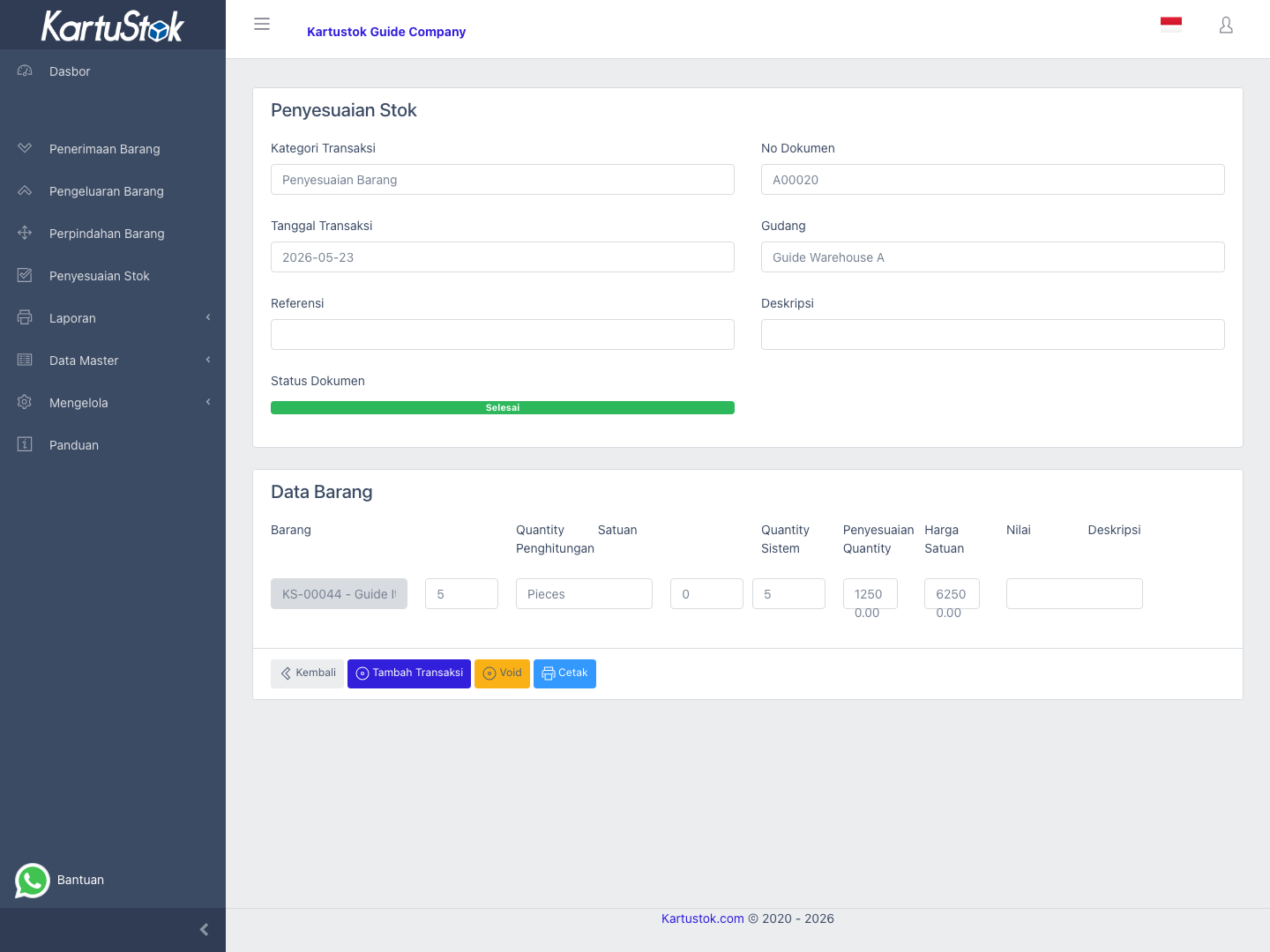
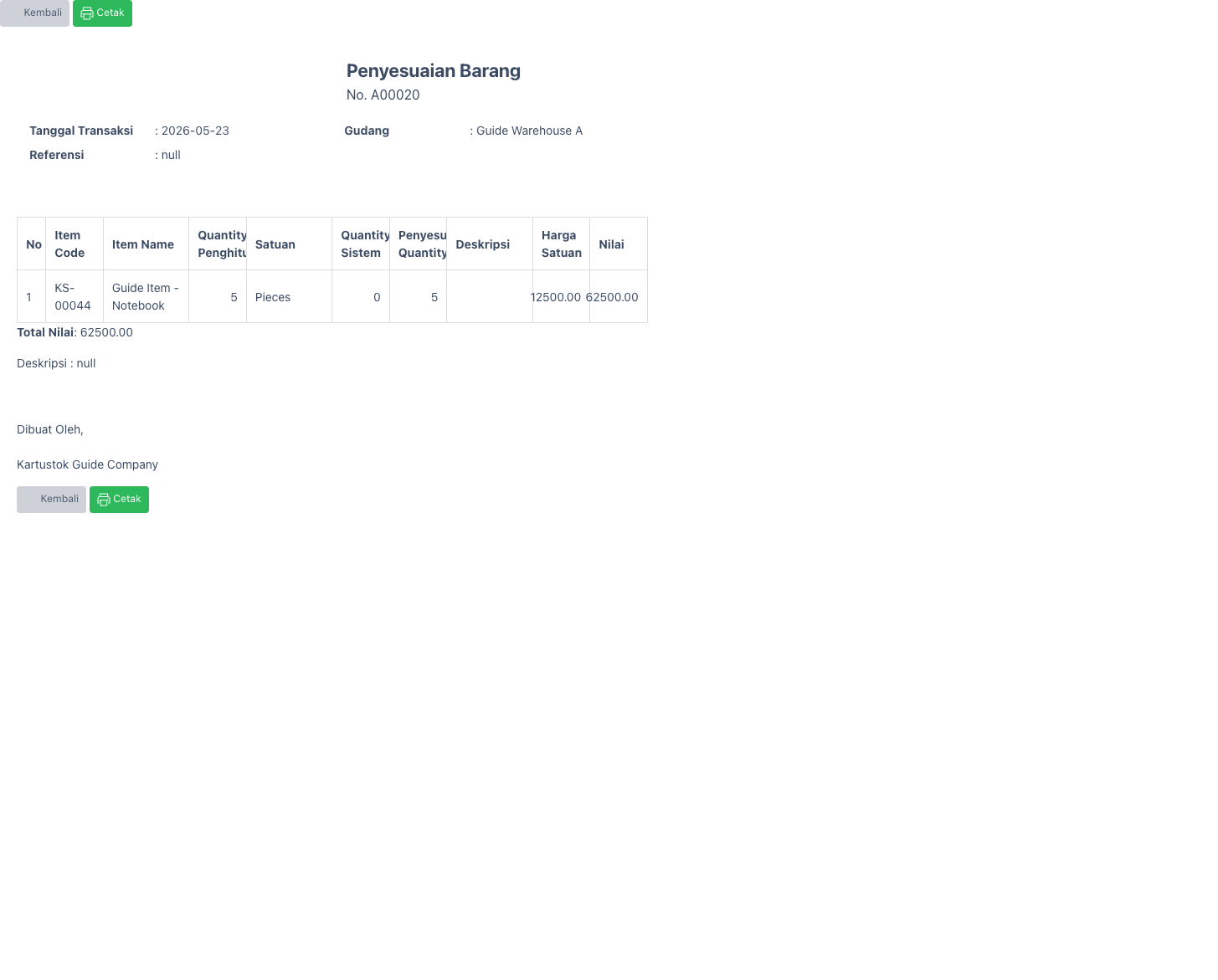
Print Adjustment when approval or stock opname documentation needs to be archived. Use Detail Stock Card to see the adjustment row and Summary Stock Card to confirm the final balance.
Common Problems
| Problem | Fix |
|---|---|
| Adjustment reason is unclear | Add reference, description, or required custom fields before completing. |
| User should not adjust stock | Remove adjustment create/update permission. |
| Report changed unexpectedly | Review adjustment transactions in Detail Stock Card. |
| Required custom field blocks completion | Fill the field or review Adjustment Form configuration. |
| User uses Adjustment for normal stock movement | Use Receipt, Issue, or Move instead so operational reports remain clear. |