
Transaction: Receipt
Receipt records stock entering a warehouse. Use it for purchase receipts, opening stock, supplier delivery, stock returns that increase stock, or other stock-in events.
Menu Location and Access
Open Receipt from the sidebar. Create, update, delete, import, and print actions depend on Receipt permissions.
Field Guide
| Field | Meaning |
|---|---|
| Transaction Category | Classifies the receipt document and can control numbering or print template. |
| No Document | Document number generated or filled according to transaction category numbering. |
| Transaction Date | Date of the stock-in event. |
| Warehouse | Warehouse receiving the stock. |
| Reference | Standard reference field for source document or external number. |
| Description | Standard document note. |
| Document Status | Draft does not update stock; Complete updates stock. |
| Item / Quantity | Item lines and received quantity. |
| Unit Price / Amount | Visible only when pricing is enabled and user has price access. |
| Custom Fields | Extra operational data configured by the company. |
If Warehouse Grouping is enabled, choose the Warehouse Group first, then the Location receiving the stock. See Master Data: Warehouse for the structure.
Document Status
Document status controls whether stock is affected:
| Status | Stock Impact | Operational Meaning |
|---|---|---|
| Draft | No stock movement yet. | Use while data is incomplete or still being checked. |
| Complete | Stock is updated. | Use when the document is approved and physically correct. |
| Void | Reverses a completed movement or cancels an unfinished document. | Use when a document must be cancelled while keeping an audit trail. |
Completed and voided documents should be treated as audit records. If a completed document is wrong, follow company correction policy instead of editing stock history casually.
Important:
Draftdoes not change stock.Completechanges stock. Always confirm the document status before investigating balance differences.
Create a Receipt
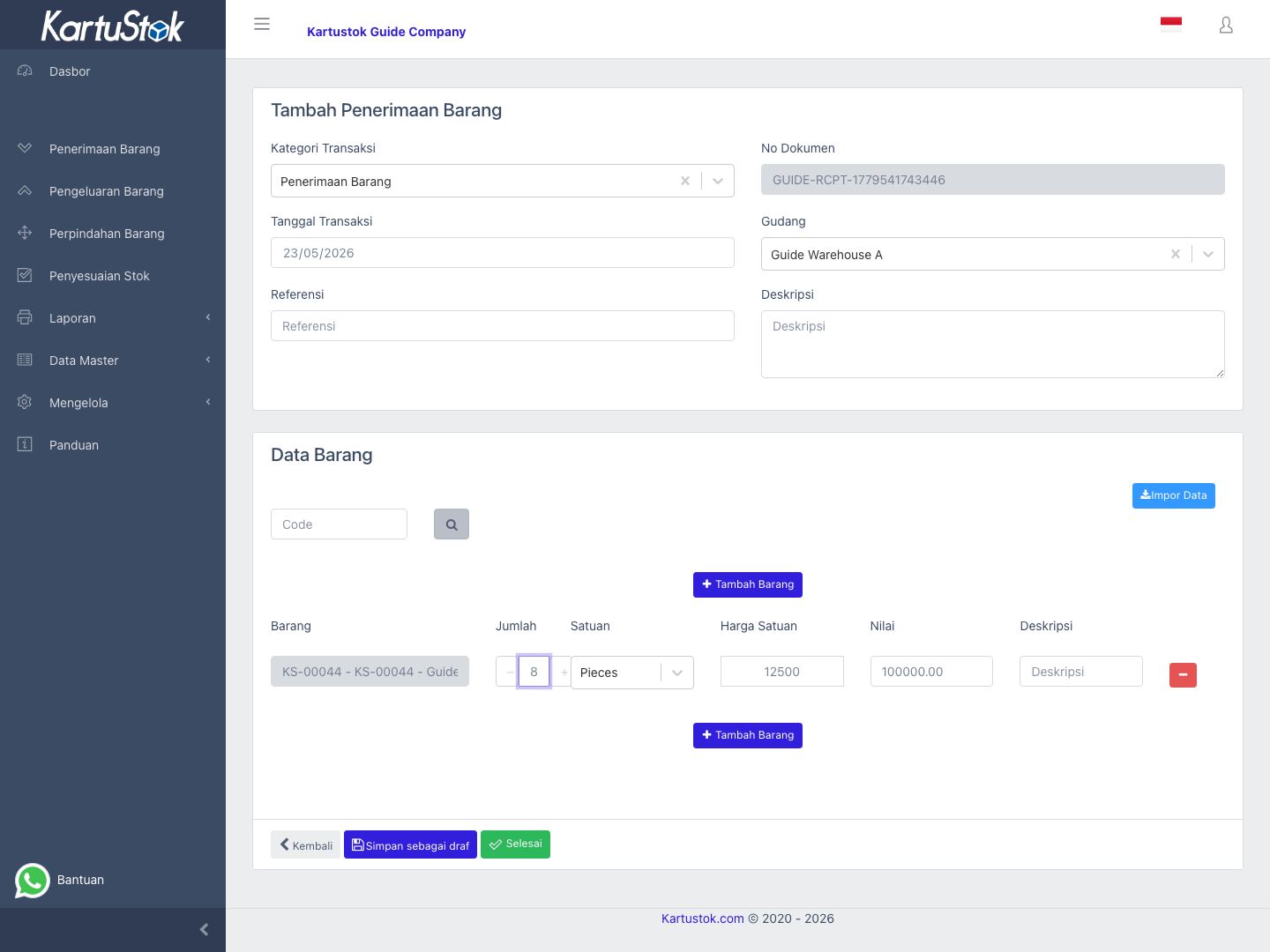
- Open Receipt and select Create Receipt.
- Choose transaction category and transaction date.
- Select the receiving warehouse.
- Fill reference and description if needed.
- Add item lines with quantity.
- Fill custom fields if the company configured Receipt Form.
- Save as draft if the document is not ready, or complete it to update stock.
If the receipt has many item lines, use the transaction line import action in the form. Download the template, fill item code and quantity, upload it, then review the imported lines before saving or completing.
Goods Receipt Form Example
A practical goods receipt form usually needs more than item and quantity. KartuStok keeps stock calculation simple: stock changes come from warehouse, item, quantity, and document status. Custom fields provide the audit story around the receipt.
Recommended custom fields below are examples, not built-in fields. Add them only if they match your receiving process.
| Business Need | Recommended Custom Field | Suggested Type | Why It Helps |
|---|---|---|---|
| Link receipt to purchasing | PO Number | Text | Connects stock receipt to purchase order. |
| Identify supplier | Supplier | Text or Dropdown | Shows who delivered the goods. |
| Match delivery document | Delivery Order No | Text | Matches supplier delivery note. |
| Record receiver | Received By | Text or Dropdown | Clarifies warehouse responsibility. |
| Quality decision | QC Status | Dropdown | Accepted, Hold, or Rejected. |
| Batch tracking | Batch No | Text | Helps trace batch-sensitive items. |
| Expiry tracking | Expiry Date | Date | Useful for perishable or controlled goods. |
| Document evidence | Attachment | File | Stores delivery order photo or signed form. |
Practical Example: Purchase Stock In
A warehouse receives 50 boxes of Packaging Tape from a supplier.
| Step | User Action | Result to Check |
|---|---|---|
| 1 | Create a Receipt with category Purchase Receipt. | Document number follows company numbering. |
| 2 | Select receiving warehouse, for example Main Warehouse. | Stock increase will be recorded in that warehouse. |
| 3 | Fill Reference with supplier delivery note number. | Document can be traced later. |
| 4 | Add Packaging Tape with quantity 50. | Line quantity matches physical receipt. |
| 5 | Fill custom fields such as PO Number, Supplier, Received By, and QC Status if configured. | Audit context is complete. |
| 6 | Complete the Receipt. | Stock balance increases and the document appears in reports. |
If pricing is enabled, review Unit Price before completing the document. The saved Unit Price becomes the transaction snapshot and does not automatically change when item Default Cost changes later.
Print and Report Relationship
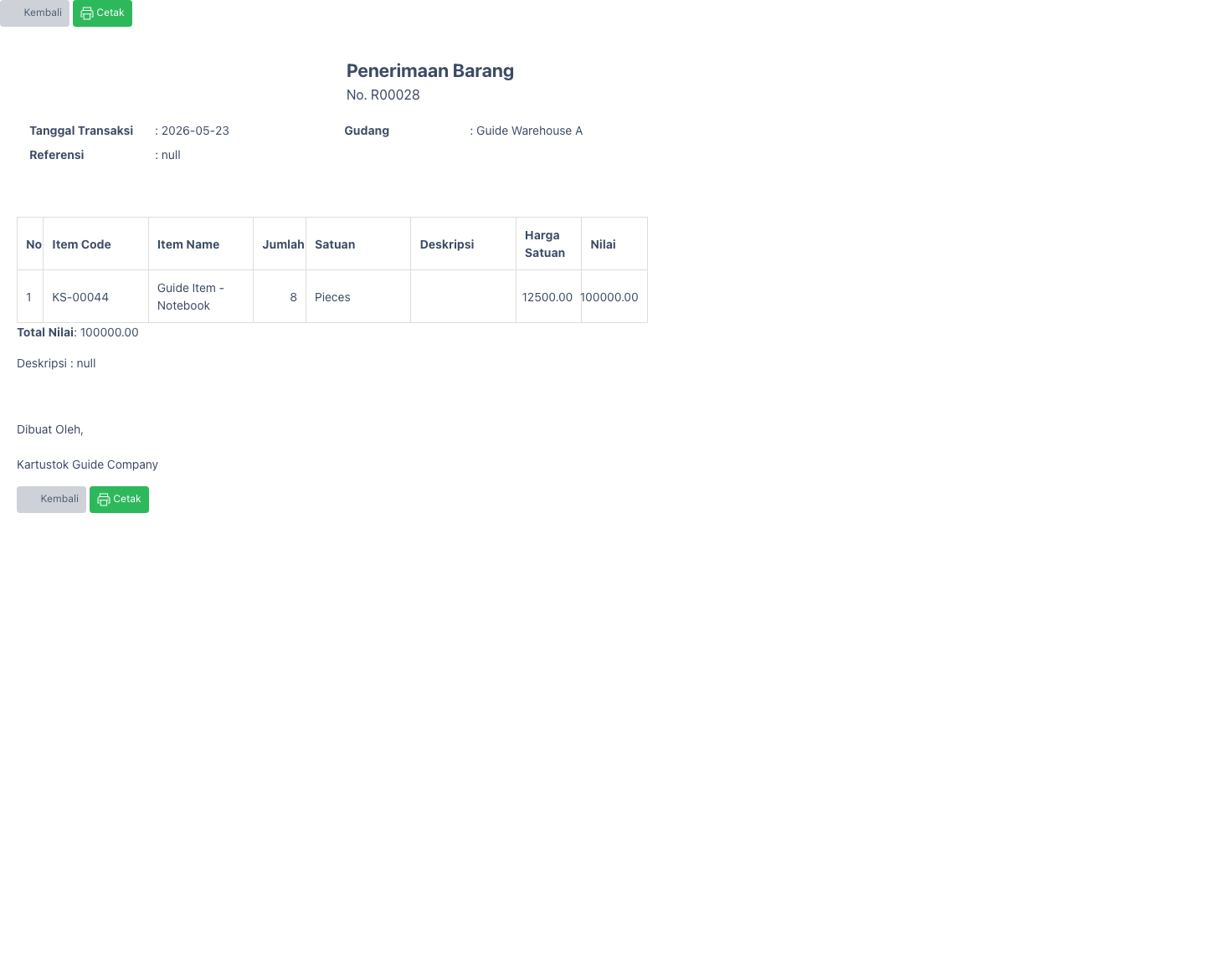
Use Print Template when receipt output must show supplier, PO number, QC status, or signatures. Use Detail Stock Card with detailed transaction info to audit receipt movement later.
What to Verify After Saving
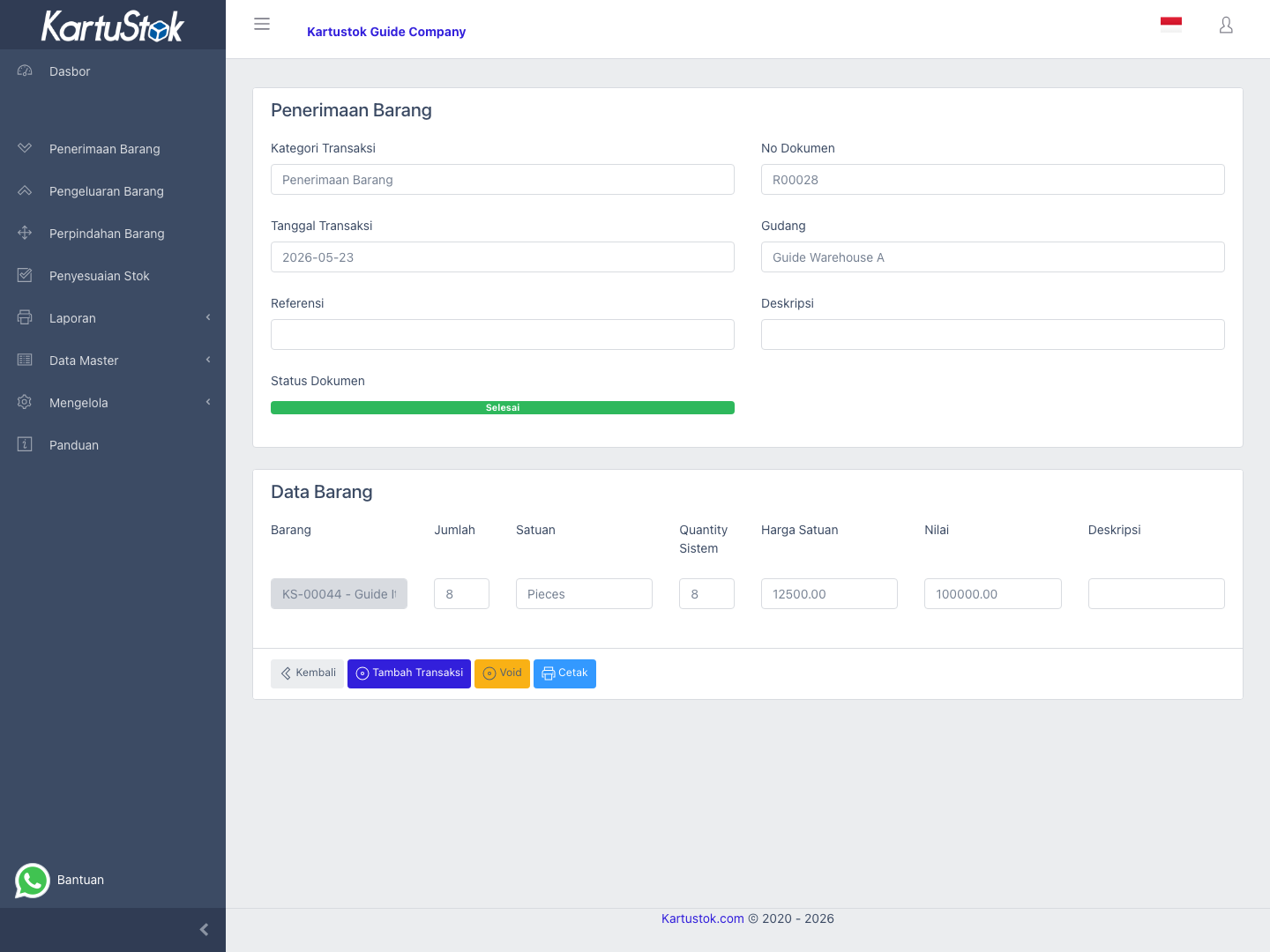
| Check | Where |
|---|---|
| Receipt is listed with correct date and document number. | Receipt list. |
| Stock increased in the receiving warehouse. | Summary Stock Card or Detail Stock Card. |
| Custom fields are visible when detailed transaction info is enabled. | Detail Stock Card. |
| Printed receipt has required fields and signature area. | Receipt print page. |
Common Problems
| Problem | Fix |
|---|---|
| Item cannot be selected | Confirm item is active and master data is complete. |
| Warehouse is empty | Select the receiving warehouse before adding lines. |
| Required custom field blocks completion | Fill the field or review Receipt Form configuration. |
| Unit Price is hidden | Check company pricing and role price access. |
| Receipt does not affect stock | Confirm the document is completed, not draft. |