
Dashboard
The dashboard is the operational starting point after login. It helps users see whether the company already has items, which documents are still drafts, and whether stock is below minimum quantity.
Who Uses This Page
| User | Main Use |
|---|---|
| Administrator | Confirms whether setup is ready and whether minimum stock visibility is configured. |
| Warehouse Staff | Checks recent stock activity and draft documents. |
| Supervisor | Reviews daily warehouse activity and items below minimum quantity. |
| Owner / Finance | Reviews operational signals when their role allows it. |
Menu Location and Access
Open Dashboard from the sidebar. The dashboard menu is available after login, but individual blocks can depend on role access and company settings.
| Block | Requirement |
|---|---|
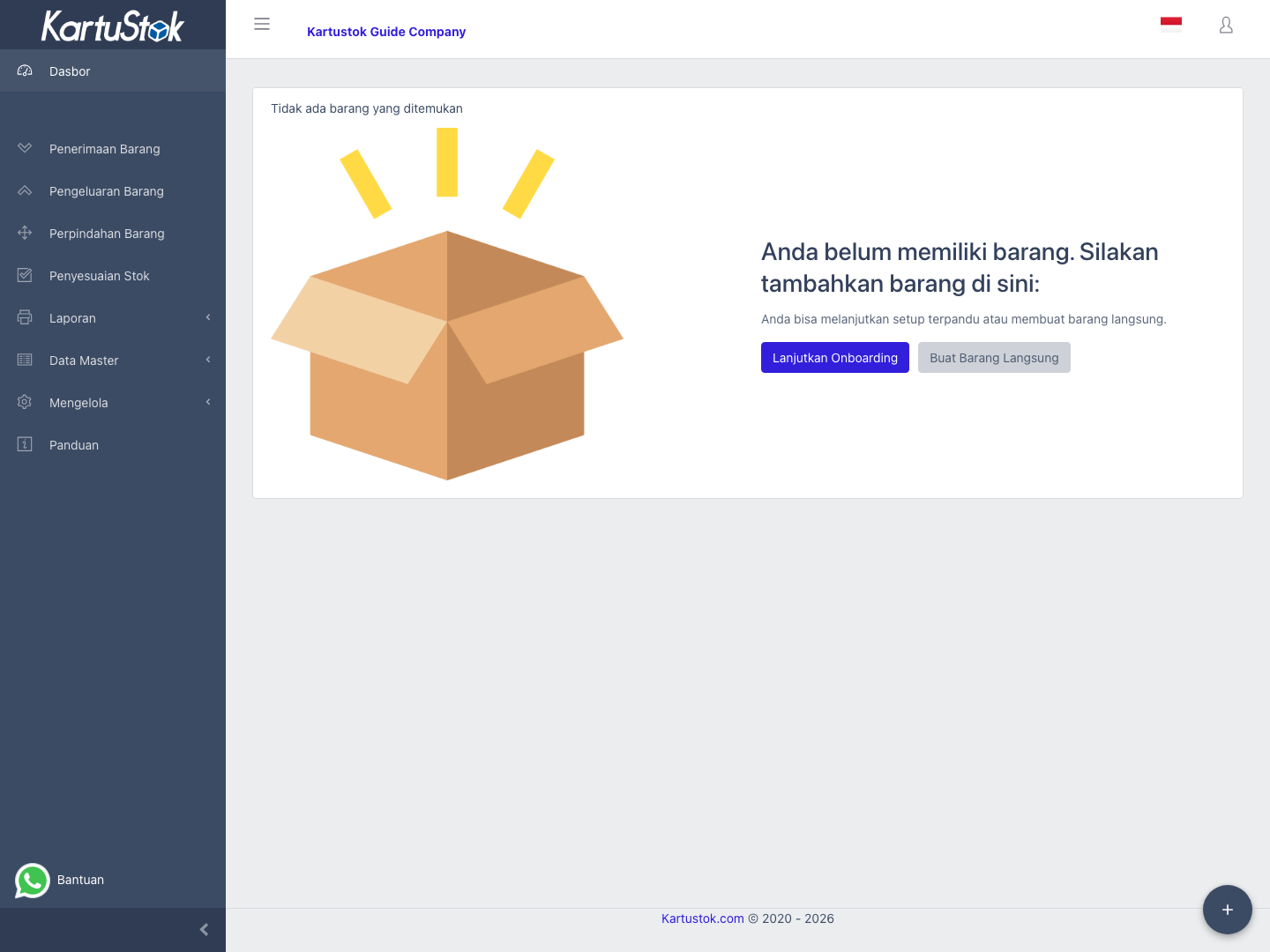
| Empty item state | Shown when the required setup already exists but the company still has no active item. |
| Draft Document Status | User must have transaction access for the related document type. |
| Draft Aging | User must have transaction access for draft documents in the active warehouse scope. |
| Minimum stock blocks | Company minimum stock is active and the user's role/dashboard access allows minimum stock visibility. |
| Activity Summary | User has access to completed stock activity in the selected period. |
| Warehouse Health | User has access to warehouse-level dashboard indicators in the active scope. |
| Top Outgoing Items | User has access to completed issue or outgoing activity in the selected period. |
| Adjustment Review | User has access to completed adjustment activity in the selected period. |
| Recent Activity | User has access to completed stock activity shown by the API. |
Empty Item State
The empty item state is not the first screen for every new company. It is shown after the required setup already exists, but the company still has no active item. Before creating the first transaction, prepare:
- Read New Company Quick Start if this is the first setup.
- If the app redirects you into setup, continue with Onboarding Wizard.
- Item Category
- Unit of Measure
- Warehouse
- Item
- Set Initial Stock
- First operational transaction such as Receipt, Issue, or Move
Operational Example: First-Item-Pending Company
When the required setup already exists and the dashboard says there are no items, do not start with a transaction. Use the dashboard as a setup checklist:
| Step | What to Do | Why |
|---|---|---|
| 1 | Create Item Category and Unit of Measure. | Items need grouping and counting unit. |
| 2 | Create at least one Warehouse. | Every stock movement needs a storage location. |
| 3 | Create the first Item. | The empty state disappears after active item data exists. |
| 4 | Record the first operational transaction. | The first real movement may be Receipt, Issue, or Move after the starting stock is ready. |
| 5 | Return to Dashboard. | Draft status, activity, and minimum stock blocks can now show operational signals. |
Onboarding Redirect and Continue Setup
If onboarding is still required and the user can manage it, the dashboard can redirect directly to Onboarding Wizard instead of staying on the normal dashboard view.
If the required master data already exist but the company still has no first item, the dashboard can show a shortcut to continue setup. This is the first-item-pending state.
Describe this behavior conservatively:
| Situation | What It Means |
|---|---|
| Redirect to onboarding | The company still lacks required setup and the user has permission to manage the guided setup. |
| Continue setup shortcut | The company already has warehouse, UOM, and item category, but still has no active item. |
| No onboarding access | The user may not have the permissions required to manage onboarding. |
Draft Document Status
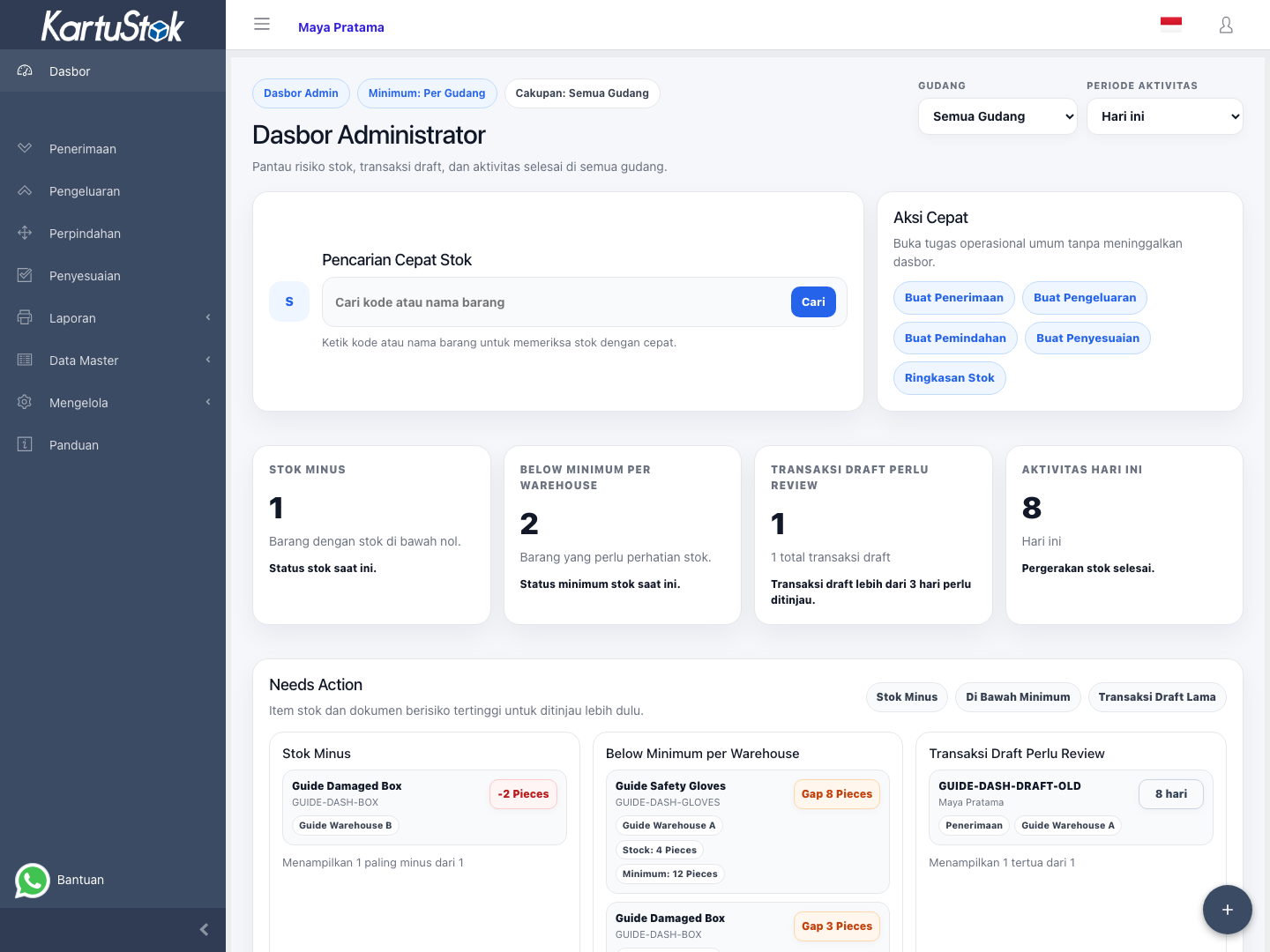
Draft cards show transactions that have been saved but not completed. Drafts do not affect stock. Open the related transaction list, review the draft, then complete or cancel it according to the company process.
Operational Review Cards
Use the dashboard cards as a daily review queue. They do not replace transaction reports, but they help supervisors decide what to inspect first.
| Card | What to Review | Practical Use |
|---|---|---|
| Draft Aging | Draft transactions by age bucket, such as today, 1-3 days, over 3 days, and over 7 days. | Follow up old drafts so documents do not stay outside stock calculation too long. |
| Activity Summary | Completed transaction activity by type in the active date or warehouse scope. | Check whether receipt, issue, move, and adjustment volume looks normal for the day. |
| Warehouse Health | Warehouse-level indicators such as negative stock, below minimum, draft count, adjustment activity, and recent activity. | Find warehouses that need attention before opening detailed reports. |
| Top Outgoing Items | Items with the highest outgoing activity. | Spot fast-moving items that may need replenishment or review. |
| Adjustment Review | Completed adjustment activity and items that may need audit attention. | Review unusual corrections, stock opname results, or shrinkage patterns. |
| Recent Activity | Latest completed stock movements in the active scope. | Confirm that recent warehouse work is being recorded. |
Important: These cards focus on operational signals. Use Detail Stock Card or Summary Stock Card when you need report-grade investigation.
Minimum Quantity
Minimum quantity shows items below their configured threshold. The card follows the warehouse minimum stock mode: Union for company-wide minimum stock, or Per Warehouse for warehouse-level minimum stock.
Important: Dashboard error state is different from empty item state. An API or access error does not mean the company has no items.
If the block does not appear, check:
| Check | Why It Matters |
|---|---|
| Minimum stock setting | The company must choose Union or Per Warehouse in Company Settings. |
| Role permission | The user role and dashboard access must allow minimum stock visibility in Roles & Permissions. |
| Item minimum data | Items must have minimum quantity configured. |
| Stock movement | The item must have stock below the threshold. |
Error State
If the dashboard cannot load because of access, network, or server error, KartuStok shows an error state with retry. This is different from the empty item state.
Common Problems
| Problem | Fix |
|---|---|
| Dashboard still shows no item | Confirm the item is active and saved in the correct company. |
| Draft count is high | Open the related transaction list and complete or review draft documents. |
| Minimum quantity block is missing | Check minimum stock setting, role permissions, and dashboard access. |
| Dashboard error appears | Use retry; if it remains, ask the administrator to check access or server status. |