
Registration and Login
This chapter explains how users enter KartuStok, create a new company account, reset a password, and return to the sign-in page from public account pages.
Login
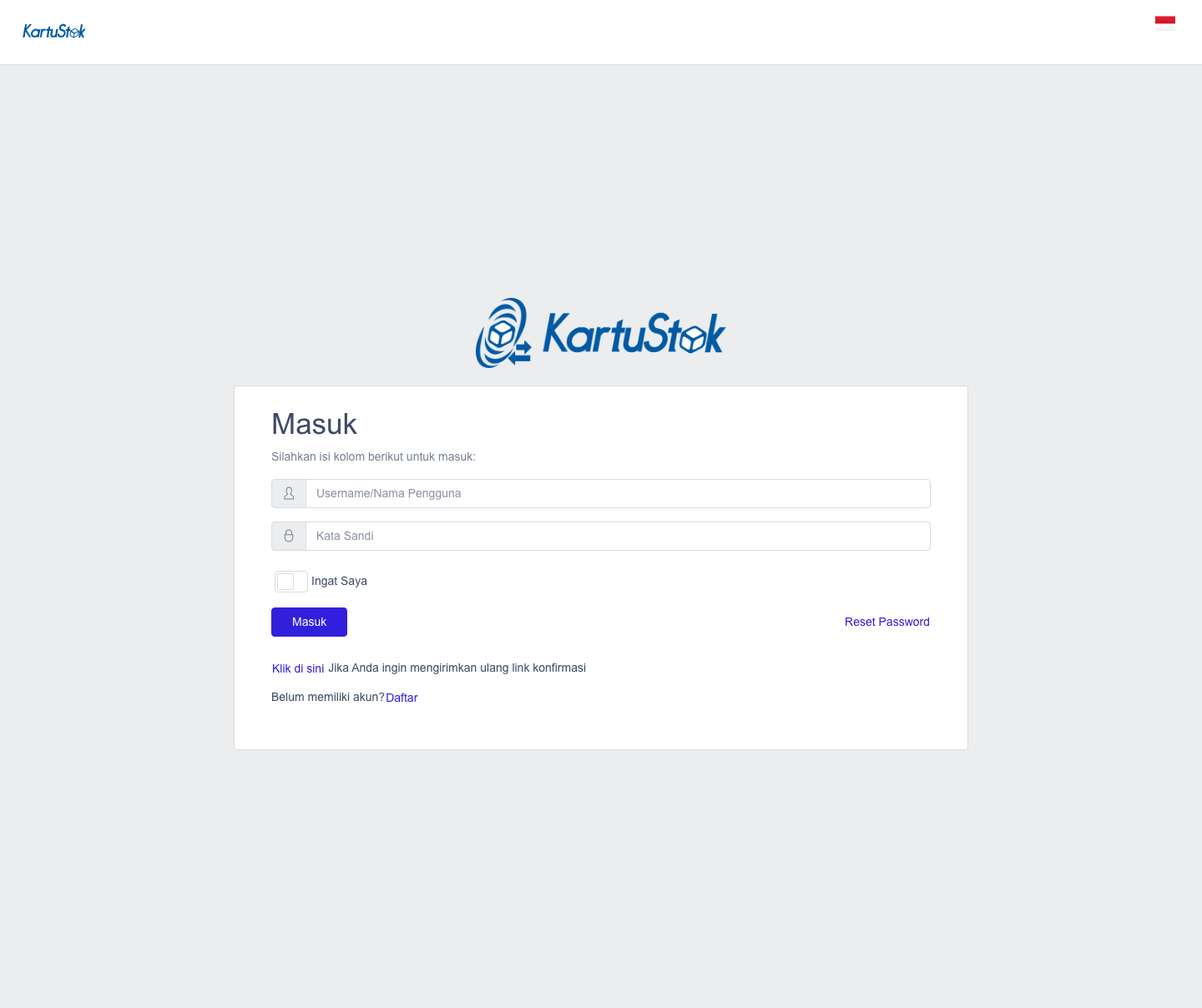
Open the KartuStok application URL for your company. Enter your email or username and password, then select Sign In.
If your account belongs to more than one company, choose the correct company before continuing. The menu and data shown after login depend on the selected company and your role access.
Register a New Company
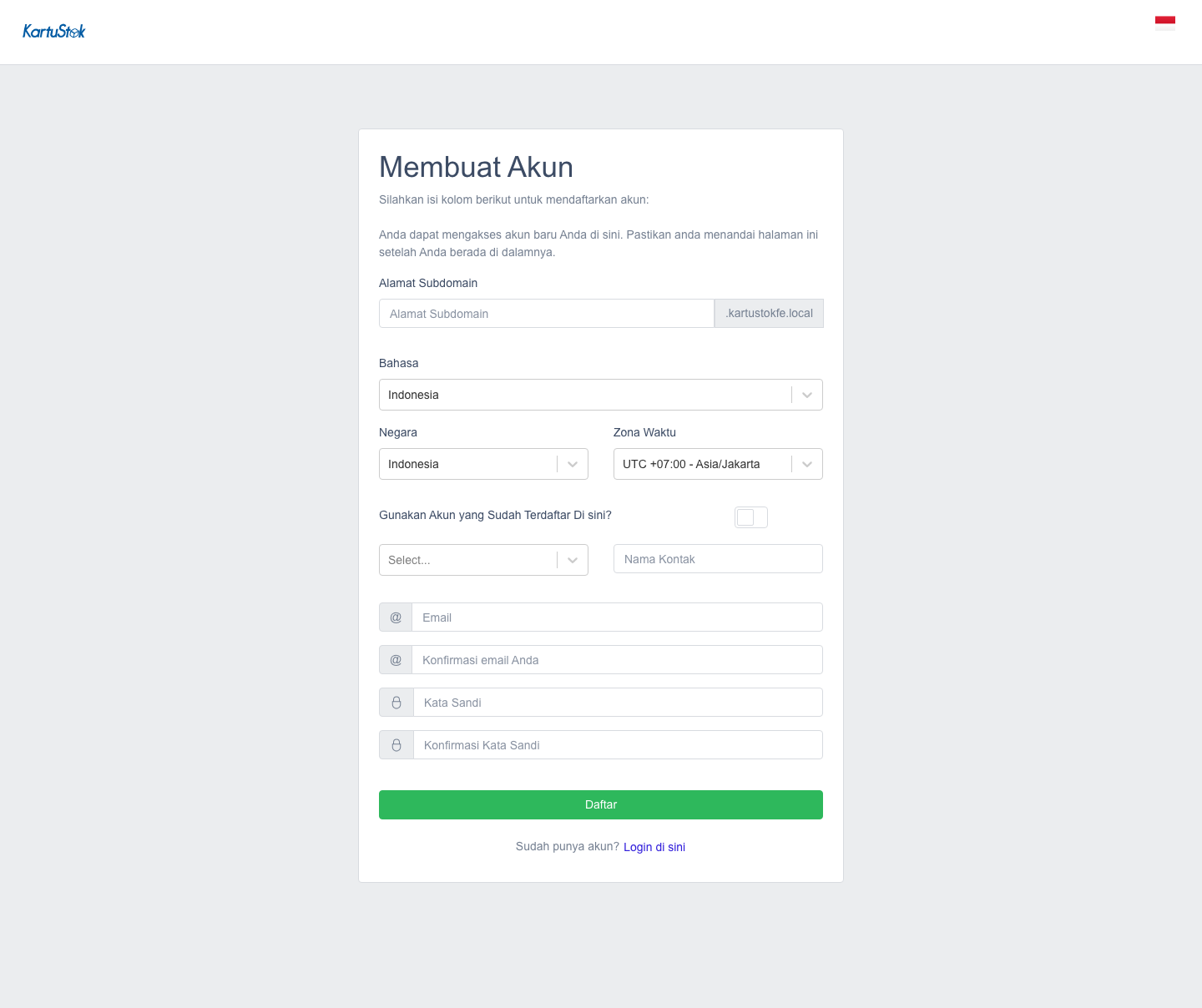
Use Sign Up from the login page when your company does not have a KartuStok account yet.
During registration, fill in the company identity and administrator account. After registration, the first company owner becomes the administrator. Default staff access is intentionally limited, so the administrator should review role access before inviting operational users.
Important Registration Fields
| Field | How to Fill It |
|---|---|
| Company URL / Subdomain | The company’s unique KartuStok address. If you enter tokobandung, the company login URL becomes https://tokobandung.kartustok.com. Use a short, memorable name with letters/numbers and no spaces. |
| Language | Initial language for the company and system emails. |
| Country | Company country. |
| Timezone | Timezone used for transactions and reports. For western Indonesia, this is usually Asia/Jakarta. |
| Use existing user | Enable this only if you already have a KartuStok account and want to register another company with that account. |
| Contact Name | First owner or administrator name. |
| Email / Confirm Email | Login and confirmation email. Both values must match. |
| Password / Confirm Password | Password for the first administrator. |
Choose the subdomain carefully because it becomes the address users use to access the company. Avoid changing it after users start using the application.
Reset Password
Use Forgot Password when you cannot sign in. Enter the registered email address and follow the reset instructions. If you remember the password or already have an account, use Sign in here at the bottom of the page to return to login.
Resend Confirmation
If your account requires confirmation and the confirmation email is not available, use Resend confirmation link. After the account is confirmed, return to login from the link at the bottom of the page.
When Login Fails
| Situation | What to Check |
|---|---|
| Invalid username or password | Confirm the email and password, then reset the password if needed. |
| Account inactive | Ask the company administrator to check the user status. |
| Menu is missing after login | Ask the administrator to check your role access. |
| Wrong company selected | Switch to the correct company from the user menu if your account has multiple companies. |