
Print Templates
Print Templates define custom layouts for stock transaction print pages. A template can be assigned to a transaction category, so different transaction categories can use different print layouts.
Menu Location and Access
Open Manage -> Others -> Print Templates. The role may have separate permissions to view, create, update, or delete print templates.
What the List Shows
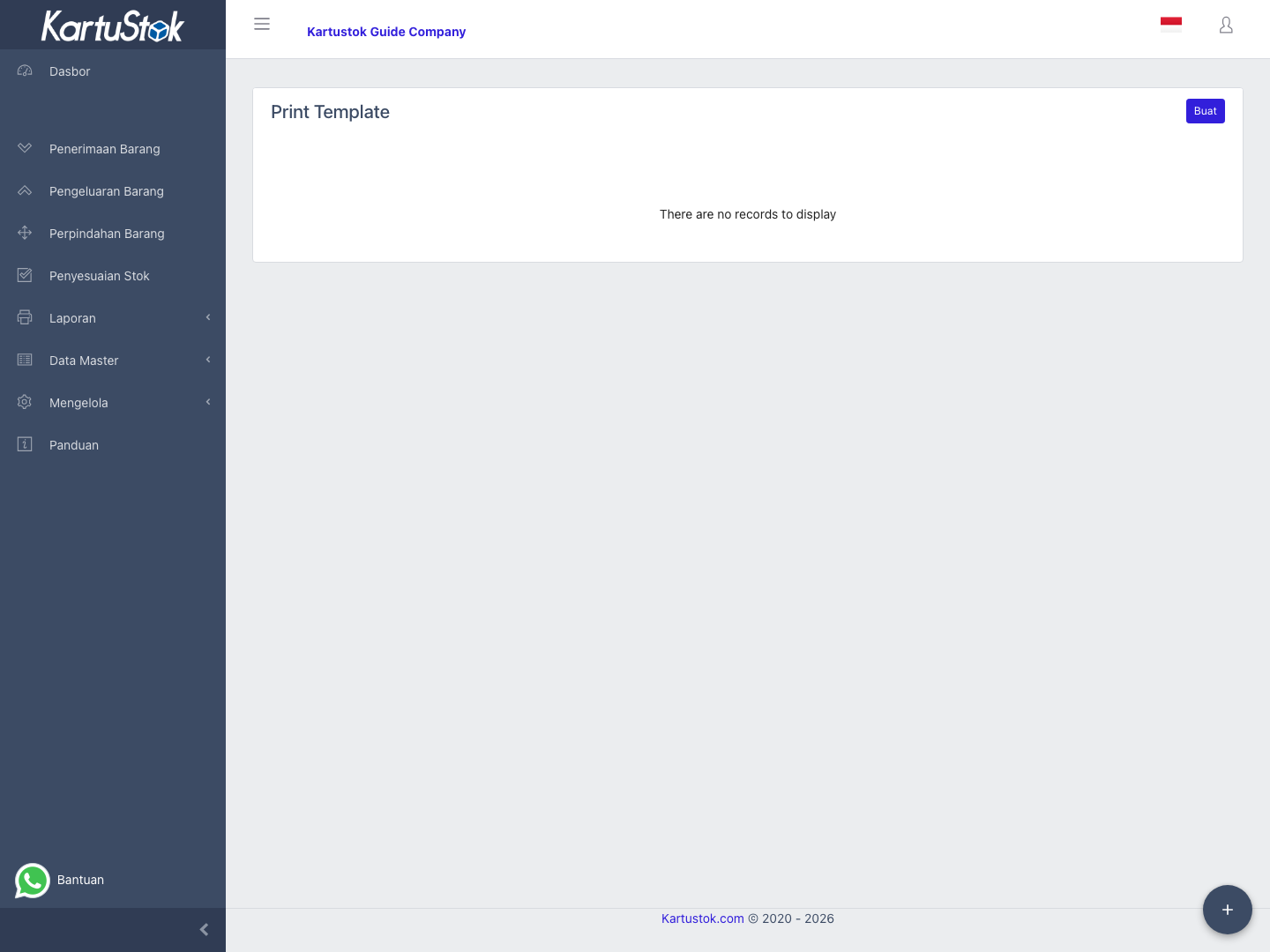
| Column | Meaning |
|---|---|
| Name | Template name. |
| Status | Active or inactive. |
| Page Size | Page size such as A4 or A6. |
| Usage | Number of transaction categories using the template. |
Create or Update a Template
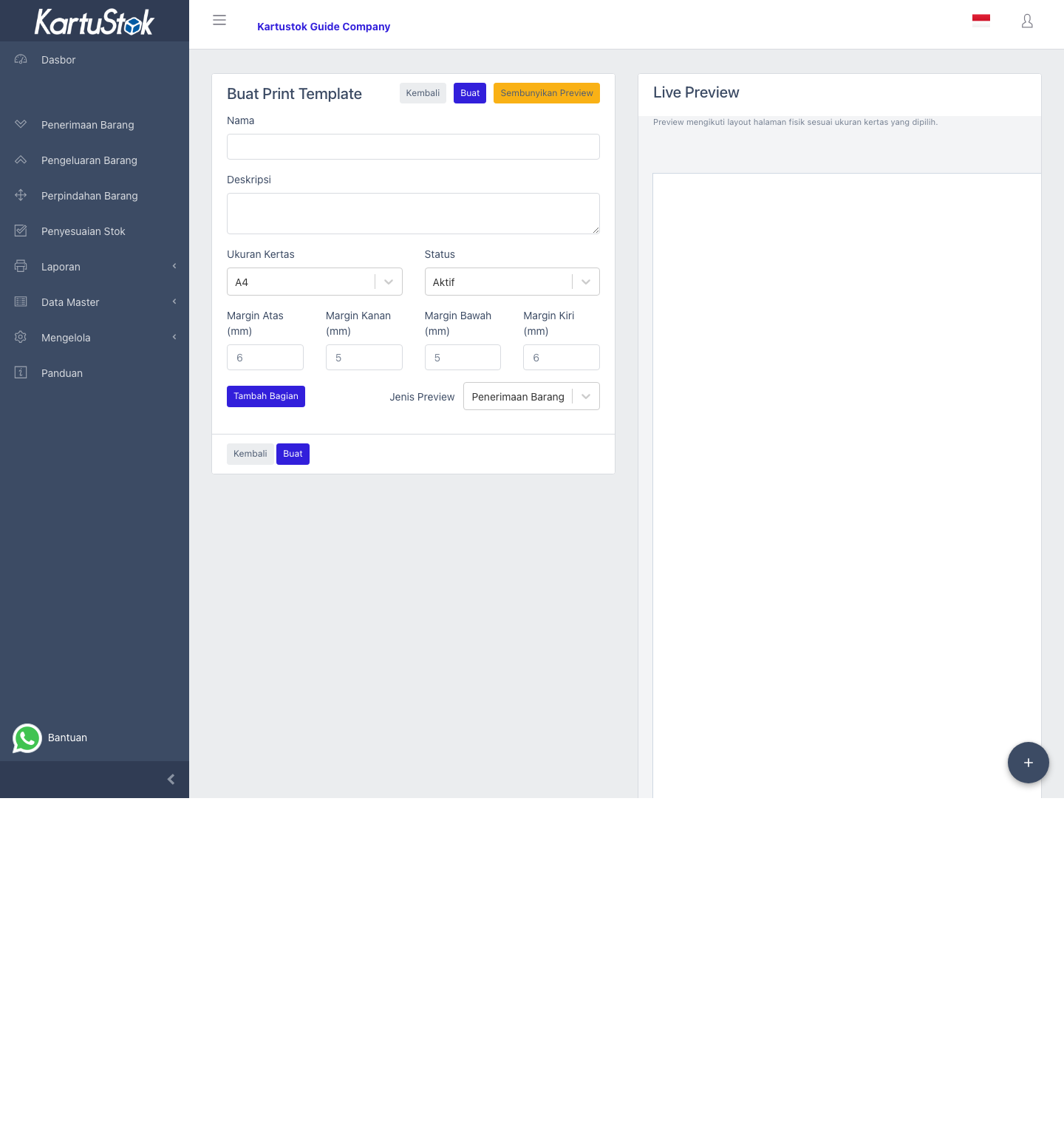
The editor contains these main settings:
| Field / Control | Meaning |
|---|---|
| Name | Template display name. |
| Description | Internal description for admins. |
| Page Size | Physical output size. Current editor options include A4 and A6. |
| Status | Active templates can be selected by transaction categories. |
| Margins | Top, right, bottom, and left page margins in millimeters. |
| Add Section / Add Row / Add Block | Builds the printable structure. |
| Show Preview | Opens a live preview using sample transaction context. |
Use a Template in Transactions
- Create or update a print template.
- Keep the template Active.
- Open Manage -> Transaction -> Transaction Category.
- Assign the template in the transaction category.
- Open a completed transaction and select Print.
KartuStok resolves print output from the transaction category. If no active template is assigned, the transaction print page uses the default print behavior.
Stock Transformation Templates
Print templates can also be used for Item Assembly and Item Disassembly categories. These documents may need transformation-specific blocks such as BOM, Parent Quantity, Input Items, Output Items, Input Parent Item, or Output Parent Item.
Use a separate print template when the company wants assembly/disassembly documents to look different from ordinary Receipt, Issue, Move, or Adjustment forms.
Practical Example: Receipt Form
A company wants receipts to show company name, document header, item table, and signature area. Create a template named Receipt Form, choose A4 or A6, add sections and blocks, preview it, then assign it to the receipt transaction category.
Common Problems
| Problem | Fix |
|---|---|
| Wrong layout appears | Check the transaction category print template assignment. |
| Template cannot be selected | Confirm the template is active and not deleted. |
| Print preview looks too tight | Adjust page size and margins. |
| Price is missing in printed item lines | Check Enable Price and the role's Price row View permission. |