
Master Data: Item
Item is the main stock-tracked product or material. Transactions, reports, minimum stock, and price information all depend on item master data.
Menu Location and Access
Open Master Data -> Item. Create, update, delete, import, and price fields depend on role permissions and company settings.
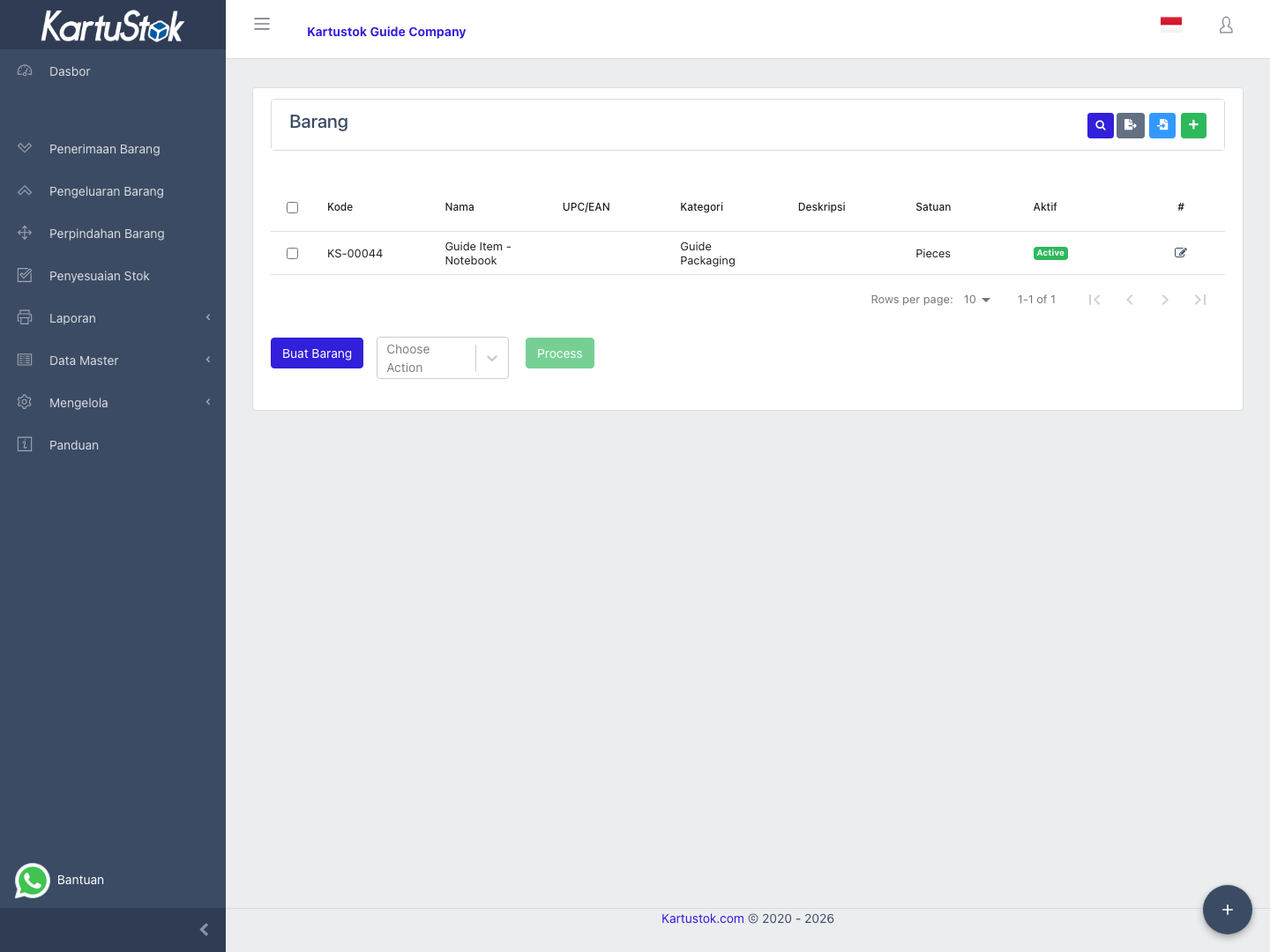
Field Guide
| Field | Meaning | Notes |
|---|---|---|
| Code | Unique item identifier. | Important for search, import, and API integration. |
| Name | Product or material name. | Use names warehouse users recognize. |
| UPC/EAN | Optional barcode or product identifier. | Useful when the company searches by barcode. |
| Description | Item description. | Add specification or operational notes when useful. |
| Item Category | Category grouping. | Must exist before selecting it. |
| Unit of Measure | Default counting unit. | Confirm UOM before transactions start. |
| Default Cost | Reference cost. | Visible only when pricing is enabled and user has price access. |
| Minimum Quantity | Minimum stock threshold for union mode. | Depends on company minimum stock mode. |
| Is Active | Whether the item can be selected. | Deactivate old items that should no longer be used. |
| Enter initial stock now? | Optional opening stock shortcut during item creation. | Requires warehouse, stock date, opening quantity, and active adjustment numbering. |
If Item Form has selected custom fields, those fields appear on create/update item. Mandatory custom fields must be filled before saving.
Operational Item Examples
Item master data should make daily transactions easier, not only store a name. Recommended custom fields depend on the type of item being managed.
| Item Scenario | Recommended Item Custom Fields | Why They Help |
|---|---|---|
| Barcode-based picking | Barcode Note, Alternate Code, Scan Instruction. | Helps users find and scan the correct item. |
| Batch-sensitive goods | Batch Required, Expiry Control, Storage Rule. | Reminds users to capture batch/expiry context in transactions. |
| Minimum stock controlled item | Reorder PIC, Preferred Supplier, Reorder Note. | Makes low-stock follow-up clearer. |
| Price-sensitive item | Cost Owner, Price Review Date, Purchase Reference. | Supports controlled maintenance when pricing is enabled. |
| Technical spare part | Brand, Model, Machine, Specification. | Prevents selecting similar but wrong parts. |
These fields are recommendations. They only appear if an administrator creates them in Custom Fields and places them into Item Form.
Create an Item
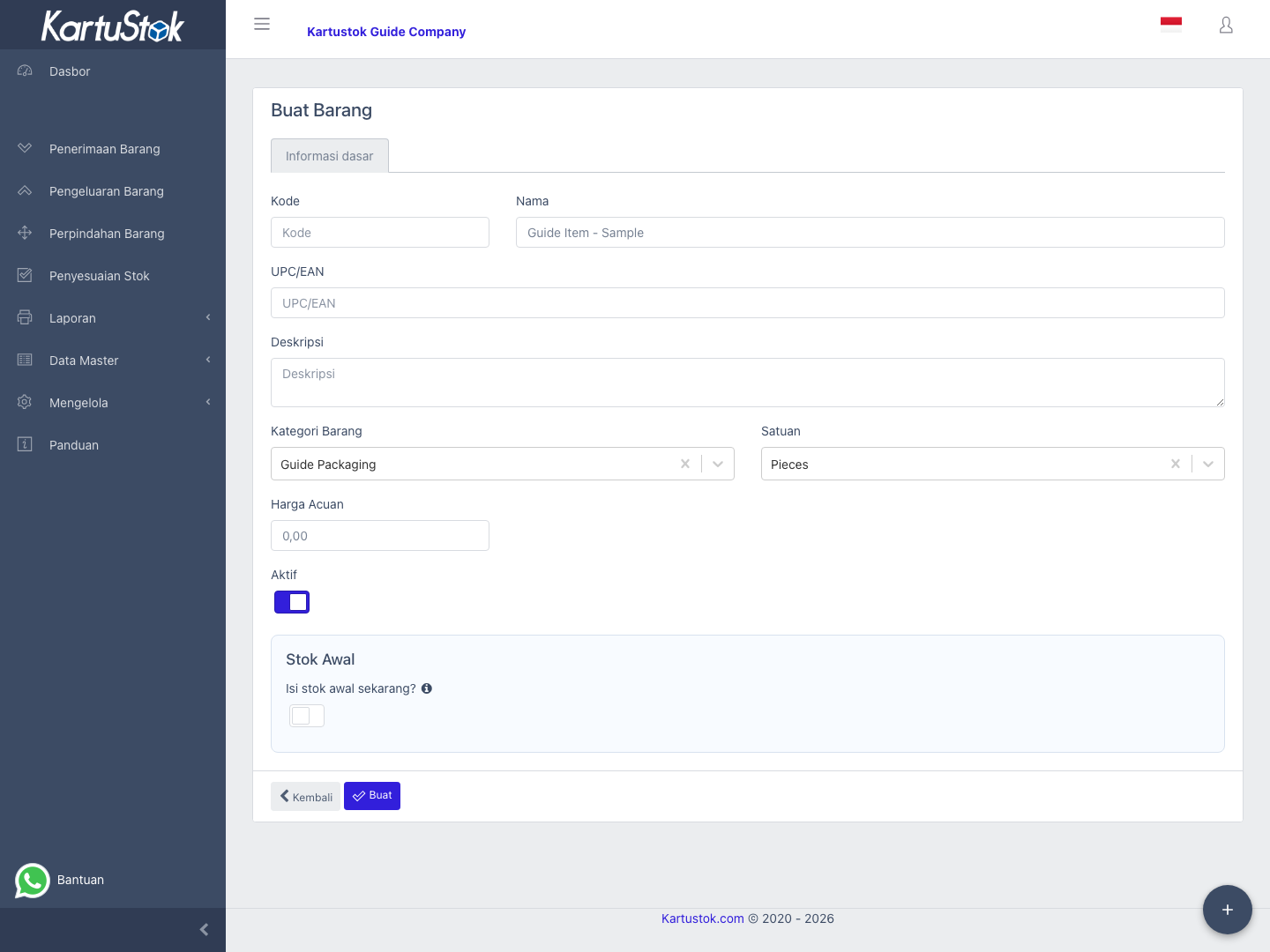
- Open Master Data -> Item.
- Select Create Item.
- Fill code, name, category, and unit of measure.
- Fill default cost if pricing is enabled and you have edit price access.
- Configure minimum quantity if the company uses union minimum stock.
- Use Enter initial stock now? only when you want KartuStok to create opening stock through an adjustment flow.
- Save and confirm the item appears in the item list.
Update an Item
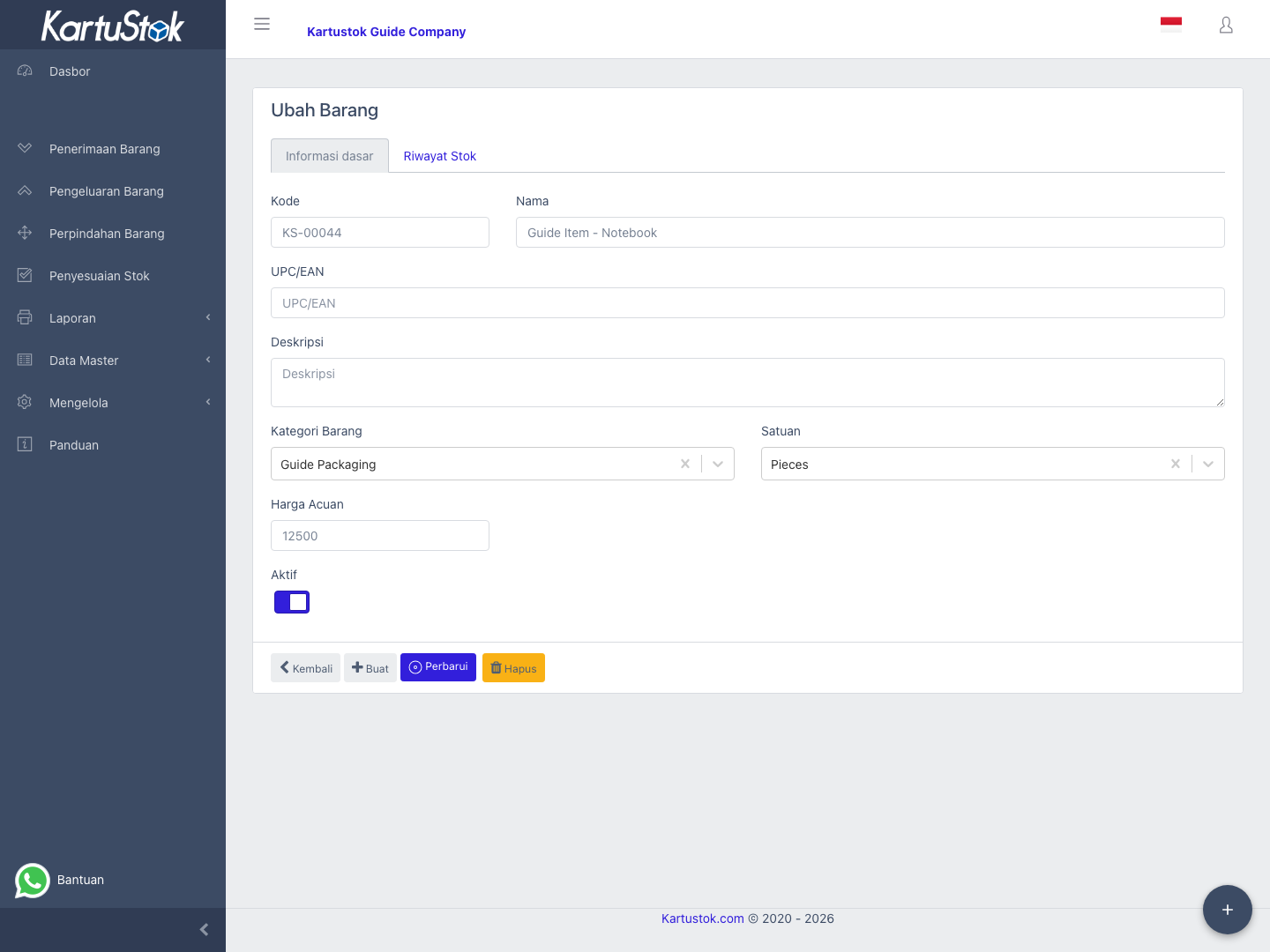
Open the item from the list. Update descriptive fields as needed. The update page also shows stock history columns such as Created At, Document No, Transaction Date, Category, Warehouse, Quantity, and Created By.
Be careful when changing UOM after stock transactions exist because users may read historical quantities using the old unit context.
UOM Conversion
Item update can define additional UOM conversions for the item. Use this when the base UOM is different from how users sometimes transact.
Example: an item has base UOM PCS, but users sometimes receive it in CTN. Add a conversion UOM and conversion quantity so transaction lines can calculate the stock quantity consistently.
Important rules:
- Keep the base UOM stable after transactions start.
- Add conversions only for units that users actually use.
- Test one receipt or issue after adding conversion so the quantity behavior is understood.
- If an item already has conversions, changing the base UOM can be blocked.
Price Behavior
Default Cost is copied as a reference when transaction unit price is filled. It does not automatically recalculate historical transaction prices.
Common Problems
| Problem | Fix |
|---|---|
| Default Cost does not appear | Check Enable Price and role price access. |
| Item cannot be selected in transaction | Confirm item is active and required master data exists. |
| Item import fails | Confirm category, UOM, and required codes exist. |
| Initial stock cannot be saved | Check warehouse, stock date, quantity, and adjustment document numbering. |
| UOM quantity looks wrong | Review item UOM conversion setup and the selected UOM in the transaction line. |